
Control what an agent can do on your account
Use Settings, Permissions to set how much an agent does without asking, let it work with teammates, pick its Qoren tools and replace its token.
On this page
- Open the Permissions page
- Set how much the agent does on its own
- Pick a preset
- Customize the rows
- Save your changes
- What always asks
- Who can change it
- What is not covered yet
- Work with teammates
- Choose the Qoren tools the agent may call
- Tools that ask for approval
- What "Disabled by environment" means
- What "Not allowed for agents in this account" means
- What "Agents working for a client never get this" means
- Public file links
- Replace the access token
- Frequently asked questions
Every agent on Qoren can talk to Qoren itself: look up its own status, message a teammate, share a file, or, if you allow it, manage other agents and environments. Settings, Permissions is where you decide how much of that each agent may do, and how much it does without asking you first. An agent can always look at itself; everything beyond that is your choice.
Open the Permissions page#
- In the sidebar, click Agents and open the agent.
- Click the Settings tab, then Permissions.
 12345
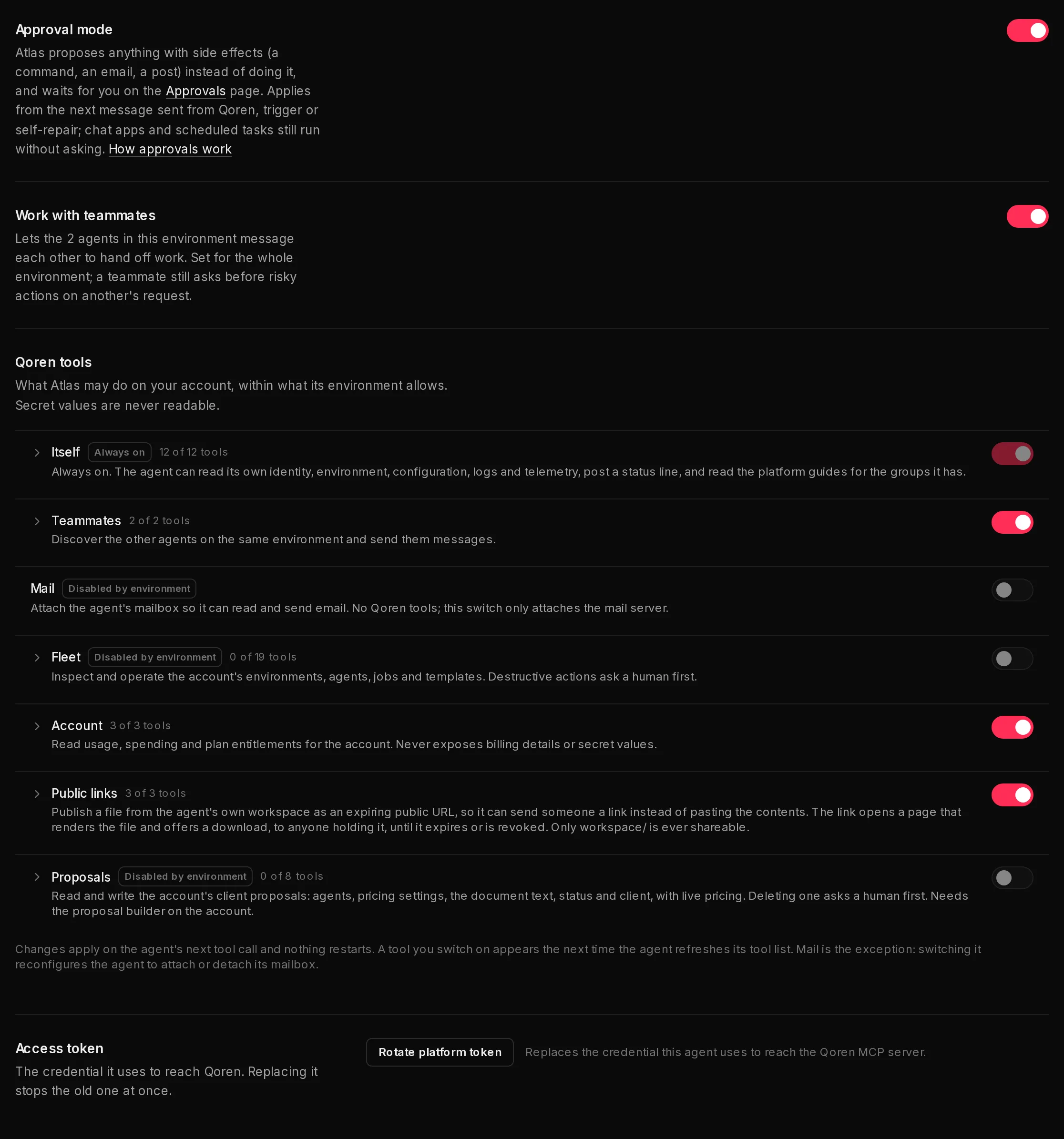
12345The page has four rows: Autonomy (1), Work with teammates, Qoren tools and Access token.
Set how much the agent does on its own#
Autonomy decides when the agent acts by itself and when it asks you first. When it asks first, it still reads, searches and thinks on its own, but anything with side effects, such as running a command, sending an email or posting a message, it proposes instead. Each proposal waits on the Approvals page until an org owner approves or denies it.
 12
12Pick a preset#
Choose one of three presets (1). A line under them says what the chosen one does.
| Preset | What it does |
|---|---|
| Autonomous | Acts on all of its work without asking and uses Qoren tools freely. Only the actions that always ask wait for you. |
| Balanced | Acts on your messages. Asks first on work from triggers, email, teammates, schedules and self-repair, and before it spends money, schedules itself or shares a public link. Every new agent starts here. |
| Cautious | Asks first on everything: all of its work, wherever it comes from, and every Qoren action. |
An agent created before these settings existed keeps the behavior it had: one that had approval mode on reads as Cautious, one that had it off as Autonomous.
Customize the rows#
Click Customize (2) to see every setting a preset stands for. Changing any of them turns the preset into Custom, and picking a preset again sets every row to match it. When the agent is already on a custom mix, the rows are open when you arrive.
When work comes from sets, for each source of work, whether the agent can Act freely or must Ask first (3):
| Row | What it covers |
|---|---|
| You (console, CLI, SDK) | A message sent to the agent from the console, the CLI or the SDK. |
| Triggers and email | A webhook trigger firing, or an email reaching the agent's mailbox. A trigger set to Propose only always asks, whatever this row says. |
| Teammates | A message from another agent: a teammate handing off work, a message from an agent managing the fleet, or a Custom agent delegating to it. |
| Scheduled tasks | A scheduled task that Qoren runs for the agent. |
| Self-repair | An automatic repair turn after a recent error. |
Qoren actions sets, for each kind of Qoren tool, whether a call goes ahead straight away (Allow) or waits on the Approvals page (Ask first). These apply in every turn, whatever started it:
| Row | What it covers |
|---|---|
| Spend money and change the fleet | Creating an environment or an agent, changing another agent's settings, cancelling a job. |
| Schedule its own tasks | Creating, changing and deleting its own scheduled tasks. |
| Message other agents | Messaging a teammate, or another agent in your fleet. |
| Share public file links | Sharing a file from its workspace as a public link. |
| Edit leads, clients and proposals | Creating and editing proposals, leads and clients, adding notes and logging touches. |
Changes through connected tools, such as adding a note in Pipedrive, wait when Edit leads, clients and proposals is set to Ask first, and, for an agent on an environment, also when any When work comes from row asks, because Qoren cannot tell which turn made the call. Their actions tagged Always asks, such as refunds, wait whatever these rows say. See how Qoren keeps connected tools safe.
Posting a status line and switching off a public link never ask. A tool still has to be switched on under Qoren tools before the agent can call it at all; these rows only decide whether a call waits for you.
Approve automatically (4) is Nothing or Everything except high risk. With Everything except high risk, what the agent proposes in a turn where it asks first is approved by the agent's own settings straight away, unless Qoren rates it high risk, and the agent carries on. High risk proposals still wait for a person. It never applies to Qoren tool requests or to requests from a Custom agent. Each one it approves is listed under Recently decided on the Approvals page as Approved automatically.
Save your changes#
Nothing changes while you click. Once something differs from what is saved, a summary appears under the rows listing each change and what it was before. Click Save changes to apply them all at once, or Discard to go back. They apply from the agent's next turn, with nothing restarted. While it asks first on your messages, the agent's Chat tab says so under the message box. The Approvals page link in the row (5) is where you decide what it proposes.
Saving everything at once means the agent never runs on a half-finished mix, such as a preset picked on the way to a custom one.
What always asks#
A few actions always wait for a person, whatever the autonomy is set to, and are never approved automatically: destroying, resizing or moving environments and agents, rebuilding an agent from its template, deleting leads or proposals, and archiving clients. These carry the Asks for approval tag in Qoren tools. The line under the rows lists them.
Who can change it#
Any member of your organization can make an agent more careful. Making it more autonomous, which means moving any row from Ask first to Act freely or Allow, picking a preset that does that, or turning on Approve automatically, is for the owner of your Qoren organization. For anyone else those choices are greyed out, with Only an org owner can make this agent more autonomous. above them. Approving and denying requests is for the owner too; see who can approve a request.
What is not covered yet#
The line under the rows says it too: messages that reach the agent through a chat app, such as Telegram, Slack or Discord, and tasks marked Runs in the agent (scheduled by its own runtime) are not covered by When work comes from yet. They run without asking. The Qoren actions rows still apply in those turns.
Asking first on your messages, on teammates and on self-repair needs a runtime that can pick a conversation back up after your decision, which is Hermes today. On another runtime those rows are greyed out with a note, and the agent acts freely on that work. Scheduled tasks and triggers can ask first on every runtime, but what a non-Hermes agent proposes from a trigger does not reach the Approvals page yet.
From the terminal, qoren agent autonomy <id> shows the settings, --preset balanced picks a preset, and --source triggers=ask or --action spend=allow changes one row. The older qoren agent approval-mode <id> on still works: it sets Cautious, and off sets Autonomous. See the CLI reference.
Work with teammates#
The Work with teammates switch (2) lets the agents in the same environment message each other to hand off work. It is set for the whole environment, not just this agent: turning it on here turns it on for every agent that shares the environment. Whether an agent asks you first on a teammate's request is its Teammates row under Autonomy.
How teammates talk to each other, and where to read what they said, is covered in agents working together.
Choose the Qoren tools the agent may call#
Qoren tools lists what the agent can do on your account, in groups. Each group has a switch on the right; click a group's name to open it and see, and switch, each tool on its own.
| Group | What it lets the agent do |
|---|---|
| Itself | Always on. Read its own identity, environment, configuration, logs and activity, post a status line, and read Qoren's guides for the groups it has. |
| Teammates | See the other agents in the same environment and send them messages. |
| Use its own mailbox to read and send email. This group adds no Qoren tools; it only connects the mailbox. | |
| Fleet | See and operate your environments, agents, jobs and templates: create agents, change another agent's settings, message an agent on its own environment, and more. |
| Account | Read your account's usage, spending and what your plan allows. It never sees billing details or secret values. |
| Public links | Share a file from its own workspace as a link that expires, list the links it shared, and switch a link off. |
| Proposals | Read and write your client proposals. |
| Leads | Read your agency's leads, add and update them, add notes and log touches. |
| Clients | Read your clients, add them and change their details. |
Proposals, Leads and Clients appear only on an account that has those features, and each of their tools also needs the account owner's say so: see why a tool is not allowed for agents.
To change what the agent may do:
- Flip a group's switch (3) to allow or block the whole group.
- To fine-tune, click the group's name, then flip individual tools inside it.
Changes save as soon as you flip a switch and apply on the agent's next tool call, with nothing restarted. A tool you switch on is offered the next time the agent refreshes its tool list. Mail is the exception: switching it reconfigures the agent to attach or detach its mailbox. No tool in any group can read the value of a secret: agents only ever see secret names.
Tools that ask for approval#
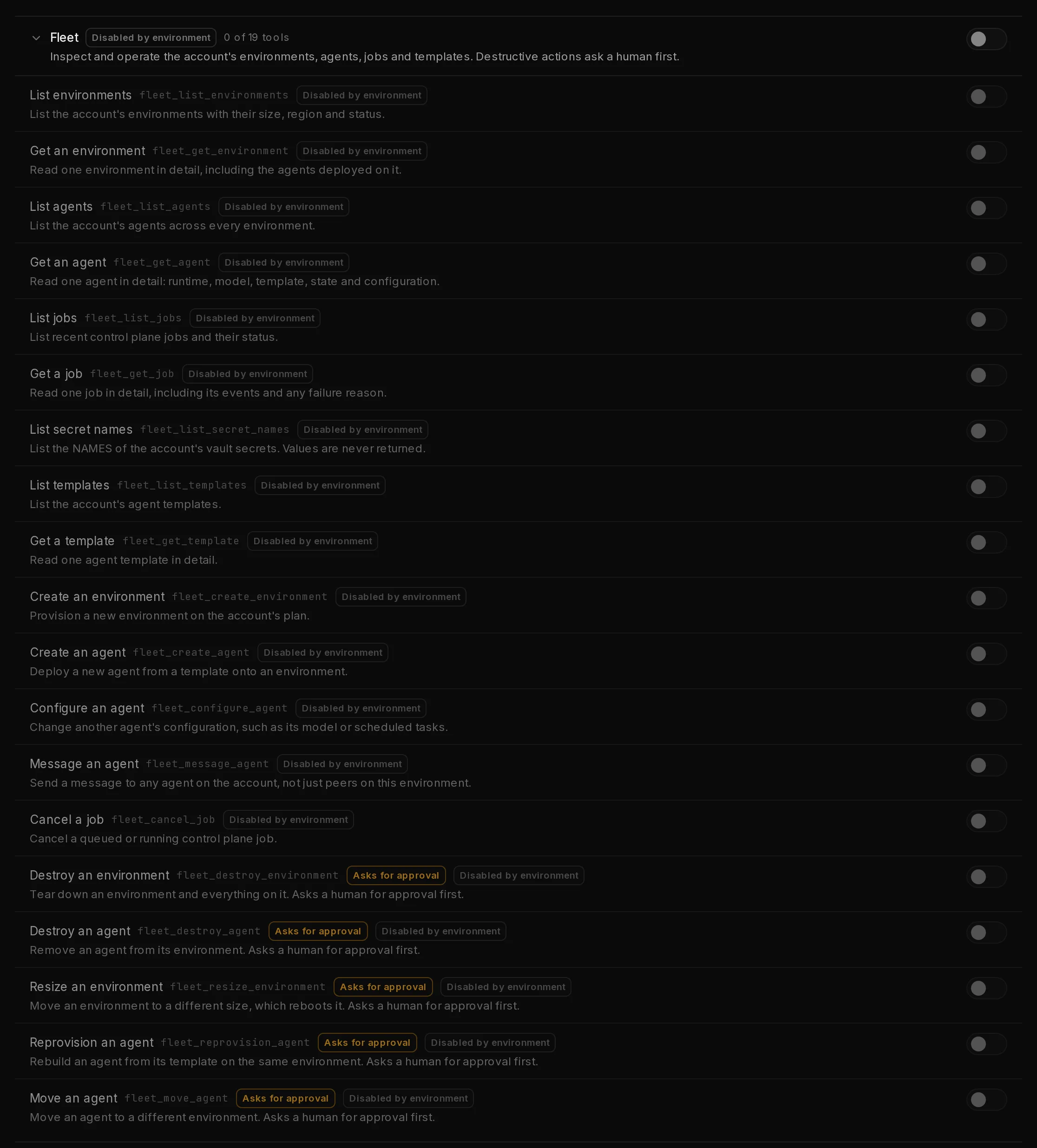
Some tools can do lasting damage: in Fleet, destroying an environment or an agent, resizing an environment, rebuilding an agent, or moving one; deleting a proposal or a lead; archiving a client. These carry an Asks for approval tag. When the agent calls one, nothing happens straight away: the request waits on the Approvals page for a person to approve it, and the agent is told so. Approving runs the action as you, so approving a deleted proposal or lead, or an archived client, needs your own Delete permission for it. See approve what your agents ask to do.
 1
1What "Disabled by environment" means#
The environment an agent runs in sets the limit for every agent on it. An agent can be given less than its environment allows, never more. A group or tool the environment has switched off shows Disabled by environment (4), and its switch cannot be turned on here.
To raise the limit, open the environment (sidebar Environments, then the environment), go to its Settings tab and change Platform access there. See environment settings. The Teammates group follows the Work with teammates switch for the environment.
What "Not allowed for agents in this account" means#
Leads, clients and proposals are your agency's own records, so the account owner sets one more limit above the environment: what any agent in the account may do with them, in the Agents section of Settings, Team. It starts empty. A tool outside it shows Not allowed for agents in this account. The owner can change it in Settings > Team., and its switch cannot be turned on here or on the environment. See choose what your agents can do.
What "Agents working for a client never get this" means#
An agent assigned to a client, or running on an environment that belongs to a client, never gets the Leads, Clients or Proposals tools, whatever the account, the environment or the agent allows. Those groups show Agents working for a client never get this. for it. This keeps your agency's records away from the work you do for clients. To give an agent these tools, use one that does not belong to a client.
Public file links#
With Public links on, the agent can publish a file from its workspace as a web link instead of pasting its contents into a message. Anyone holding the link sees a page that shows the file and offers a download, until the link expires or is switched off. Only files in the agent's workspace/ folder can ever be shared, and the agent has to set an expiry for each link. If your environment has not allowed the group, it shows Disabled by environment.
Replace the access token#
The Access token row holds the credential the agent uses to reach Qoren. Replace it if you think it leaked:
- Click Rotate platform token (5).
- Read the prompt, then click Rotate.
The old token stops working at once. The agent picks up the new one once its configuration is rewritten, which Qoren does for you. Until then, calls it makes to Qoren tools fail.
For developers, the platform MCP article lists every tool by its technical name and explains how the server works.
Frequently asked questions#
Is anything on by default?
The Itself group is always on and cannot be switched off. Everything else starts at what the agent's environment and template allow.
Does switching a group off stop work already under way?
The check happens each time the agent calls a tool, so the next call after you switch something off is refused.
Why is the Mail switch off even though the agent has a mailbox?
The Mail group is what connects the mailbox to the agent. If the environment has not allowed it, it shows Disabled by environment. Allow it on the environment first, then here. Setting up the mailbox itself is in agent email.
Can an agent approve its own risky requests?
No. Tools tagged Asks for approval wait for a person on the Approvals page, and Approve automatically never covers them or anything rated high risk. The agent cannot run them itself.
What is the difference between Autonomy and Asks for approval?
Asks for approval is a tag on a few destructive Qoren tools, and those always wait, whatever else is set. Autonomy is for everything else the agent does: which of its work it asks first on, and which other Qoren actions wait for you.
What happened to approval mode?
Autonomy replaced it. An agent that had approval mode on now reads as Cautious and behaves as before; one that had it off reads as Autonomous. New agents start on Balanced.