
Invite team members to your account
Invite teammates to your Qoren account, choose what each one may do with leads, clients and proposals, and set what your agents may do with them too.
On this page
A Qoren account can have more than one person in it. Everyone in the team works on the same environments, agents and credits, so an agency can split the work between its staff without sharing a login. Your leads, clients and proposals are different: each member sees and changes only what you allow. Team members are free: your plan only sets how many people can join.
How many people can join#
The limit counts everyone: you, the people who already joined, and anyone invited who has not joined yet.
- Starter: 1 team member, which is just you
- Pro: up to 2 team members
- Ultimate: up to 5 team members
- Business and Enterprise: no limit
A trial gets the limit of the plan you are trying. The full plan comparison is on plans and the free trial.
Before you start#
- You are the account owner. Only the owner can invite and remove people.
- Your account has a plan. An account without one is a team of one until you choose a plan.
Invite someone#
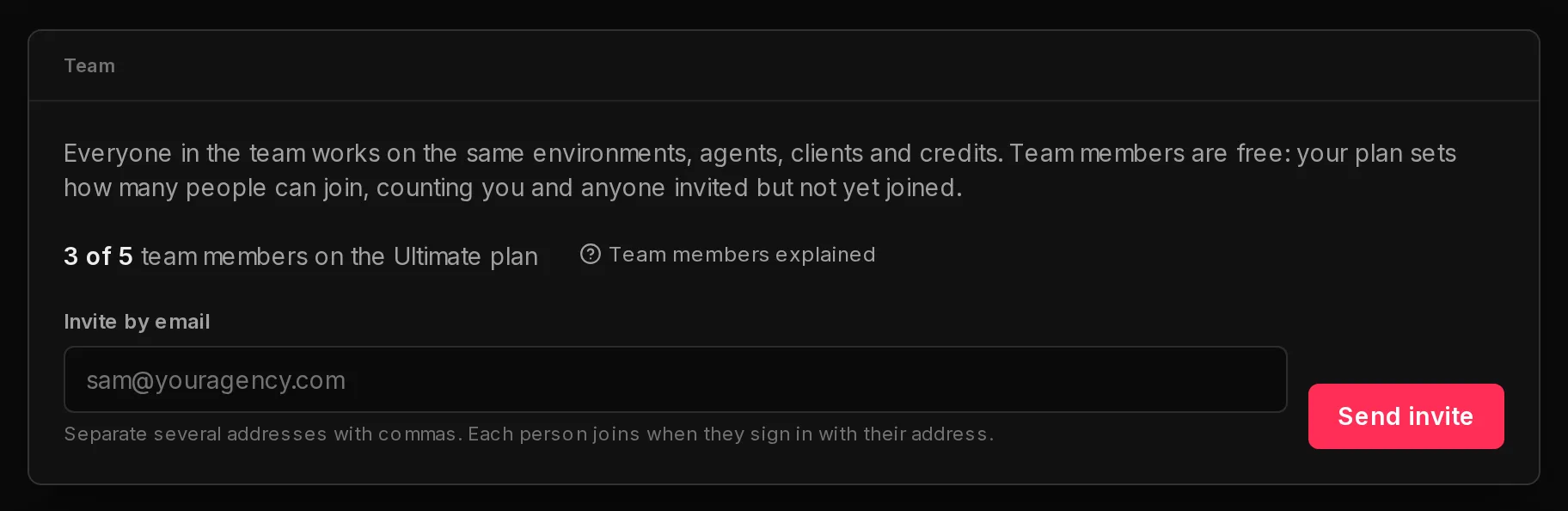
- In the sidebar, click Settings, then the Team tab. The top of the page shows how many of your plan's team members are in use, for example 3 of 5.
- Under Invite by email, type one or more addresses. Separate several with commas.
- Click Send invite. Each person gets an email from hello@qoren.sh with a link to the sign-in page, and shows up under Pending invites.
 123
123The invite is tied to the address, not to a link. Your teammate joins the moment they sign in or create an account with that exact email: with Google, with GitHub, or with a password once they confirm the six-digit code Qoren emails them. There is no invite code to pass along.
Withdraw an invite or remove a member#
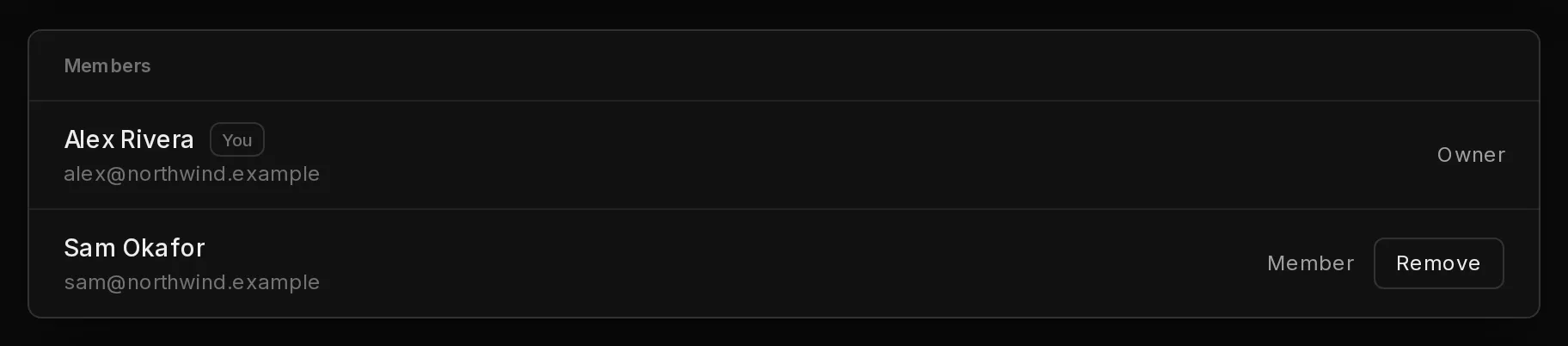
On the Team tab, every pending invite has a Withdraw button and every member except the owner has a Remove button. Both ask once before they act.
 1
1When you remove a member:
- they lose access to your environments, agents, clients and credits within a minute;
- every CLI and API token they created stops working, so nothing they set up keeps calling in;
- their own Qoren account stays. The next time they sign in they get a new, empty workspace of their own.
Removing someone frees their seat straight away, so you can invite someone else.
What members can and cannot do#
Members can create and run environments and agents and chat with agents, just like the owner. What they may do with leads, clients and proposals depends on the permissions you give them (see below). A few settings stay with the owner because they decide what the account pays for or who is in it:
- the plan, billing, top-ups and spend controls;
- your own model key (BYOK) and agent mailboxes;
- changing and deploying Custom agent designs;
- the team itself: inviting, withdrawing and removing, and who may do what.
Members see a note on the Team tab saying so, and a Leave button if they want to leave the team themselves. Each person creates their own access tokens for the CLI and SDK, and a token can do exactly what its owner can do in the console.
Choose what each member can do#
Leads, clients and proposals are your agency's own records, so you decide who works on them. The account owner always has every permission, and the owner's row on the Team tab reads Full access. Everyone else starts with nothing: a new member does not see the Leads, Clients or Proposals pages until you give them access.
On the Team tab, each member has a small grid: a row each for Leads, Clients and Proposals, and a column each for View, Add, Edit and Delete. The Leads row appears only when Leads is switched on for your account; it builds on Clients, like Proposals.
- In the sidebar, click Settings, then the Team tab.
- Find the member and tick the boxes they need.
The grid keeps itself consistent. Ticking Add, Edit or Delete also ticks View, since nobody can change what they cannot see. Unticking View clears the whole row.
| Permission | What it allows |
|---|---|
| View | See the page and open the records |
| Add | Create new ones, such as a new client, a new lead or a new proposal |
| Edit | Change existing ones. For clients this includes assigning an environment to a client; for leads it includes notes, stages and logged touches; for proposals it includes the status and the assigned client |
| Delete | Remove them. For clients this means archiving one |
A change applies within about 30 seconds. Members see their own permissions on the same tab, read only, so they know what to ask you for. If a member tries something they are not allowed to do, Qoren refuses it and tells them to ask the account owner.
Permissions apply everywhere the member works: in the console, from the CLI and through the SDK. When an agent asks to delete a proposal or a lead, or to archive a client, whoever approves the request on the Approvals page needs the matching Delete permission.
Choose what your agents can do#
Agents can work on leads, clients and proposals too, through the Qoren tools of the platform MCP. The Agents section of the Team tab sets the most any agent in your account may ever do with them, using the same grid as for a member. Agents start with nothing here as well.
This is a ceiling, not a switch that hands out access. Each environment's Platform access card, and each agent's own Permissions, can narrow it further but never go past it. A tool your account does not allow shows Not allowed for agents in this account. The owner can change it in Settings > Team. in those panels.
If you move to a smaller plan#
Nobody is removed when you downgrade. Everyone already in the team keeps access. Until the team is back under the new plan's limit, you cannot send new invites, and pending invites cannot be accepted. Remove people or withdraw invites to make room, or move back to a bigger plan.
Frequently asked questions#
Do team members cost extra?
No. Seats are free on every plan. Your plan only sets how many people can be in the team, and everyone shares the account's credits.
Does a pending invite count toward the limit?
Yes. The limit counts you, everyone who joined and everyone invited but not yet joined. Withdraw an invite to free its seat.
My teammate signed in but did not join. Why?
They have to sign in with the exact address you invited. A password account joins once its email is confirmed. If they already had their own Qoren workspace, they accept the invite from Settings, Team instead.
Can I give a team member access to only some clients?
Not yet. You decide whether a member may view, add, edit or delete clients at all, but a member who can view clients sees every client in the account.
Why can a teammate no longer see Clients or Proposals?
Members only see what the owner allows. Open Settings, Team as the owner and tick View on the rows they need, plus Add, Edit or Delete if they should change things.
Can a member change their own permissions?
No. Only the account owner can change who may do what. Members see their own permissions on the Team tab, read only.