
Let a client connect their own tool
Send an agency client a single-use link to connect their Pipedrive, Stripe or other tool. They paste the key on a page with your name, and you never see it.
On this page
When you run agents for a client, the tool they need usually belongs to the client: their CRM, their store, their payment account. A connect link lets the client connect it themselves. You send one link; the client opens it without a Qoren account, follows the steps to make a key, and pastes it on a page with your name on it. The key is encrypted the moment it arrives. You see the connection, never the key.
If you already hold a key the client gave you, you can also connect it yourself and pick the client in Which client is this for?; see connect a tool. A link is the safer habit, because the key never passes through your inbox.
Before you start#
- Your account uses Clients, and the client is on your Clients page.
- You are the owner of your Qoren organization. Only the owner sends and revokes links.
Send a link#
- In the sidebar, under Capabilities, click Integrations.
- In the Connect links section, click Send connect link.
- Under Client (1), pick the client, and under Tool (2), the tool to connect.
- Under What agents may do (3), choose Read only or Read and write. The client's page shows this choice in plain words, and Qoren refuses a key that cannot support it.
- In What it is for (4), say in a sentence why you need it, for example "So your booking assistant can see new appointments as they come in." The client reads it on the page.
- Click Create link (5).
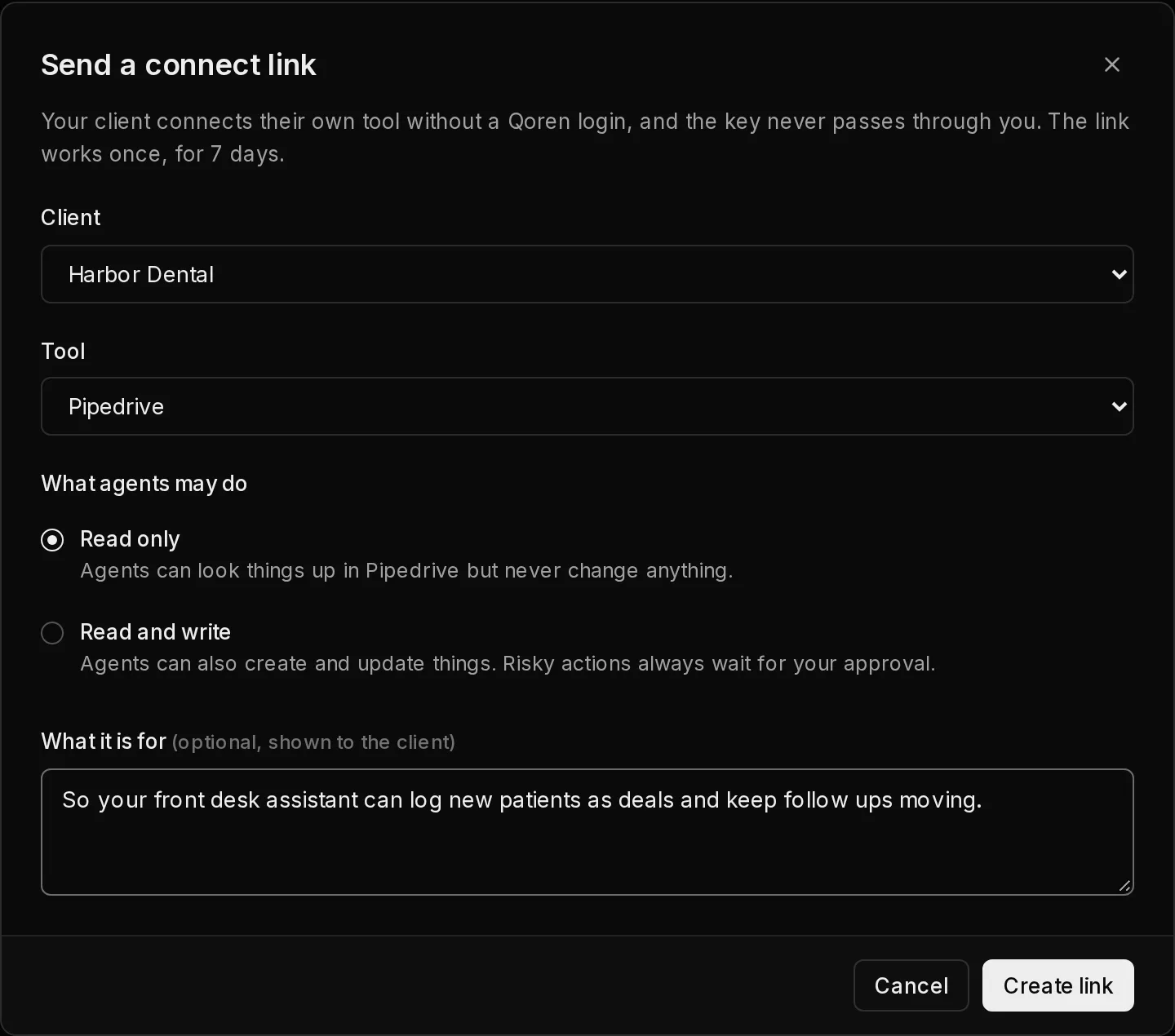 12345
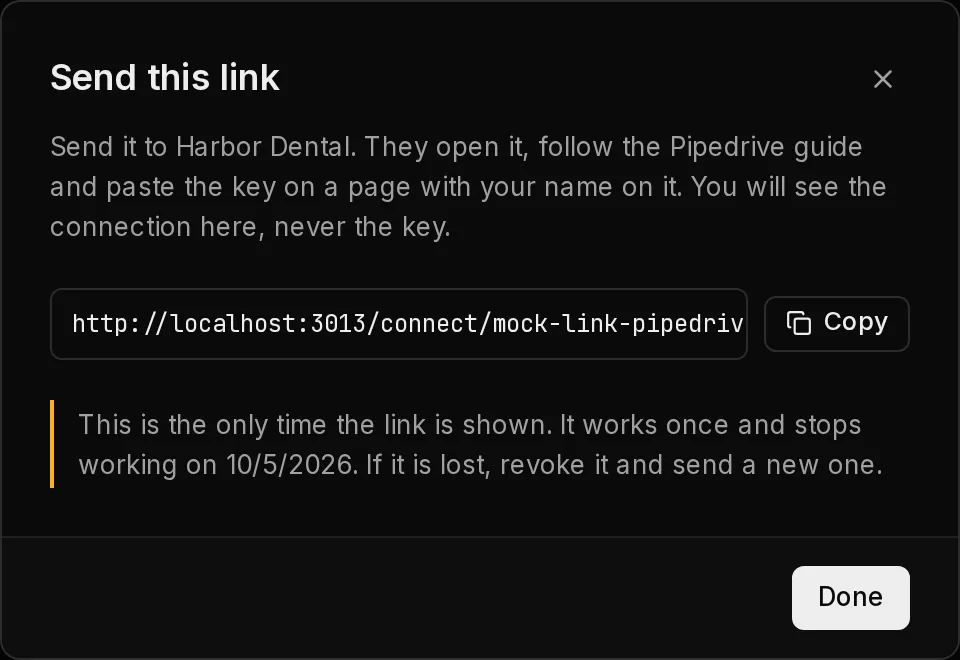
12345- The Send this link dialog shows the link with a Copy button (1). Copy it and send it to the client, by email or chat as you usually would.
 1
1What your client sees#
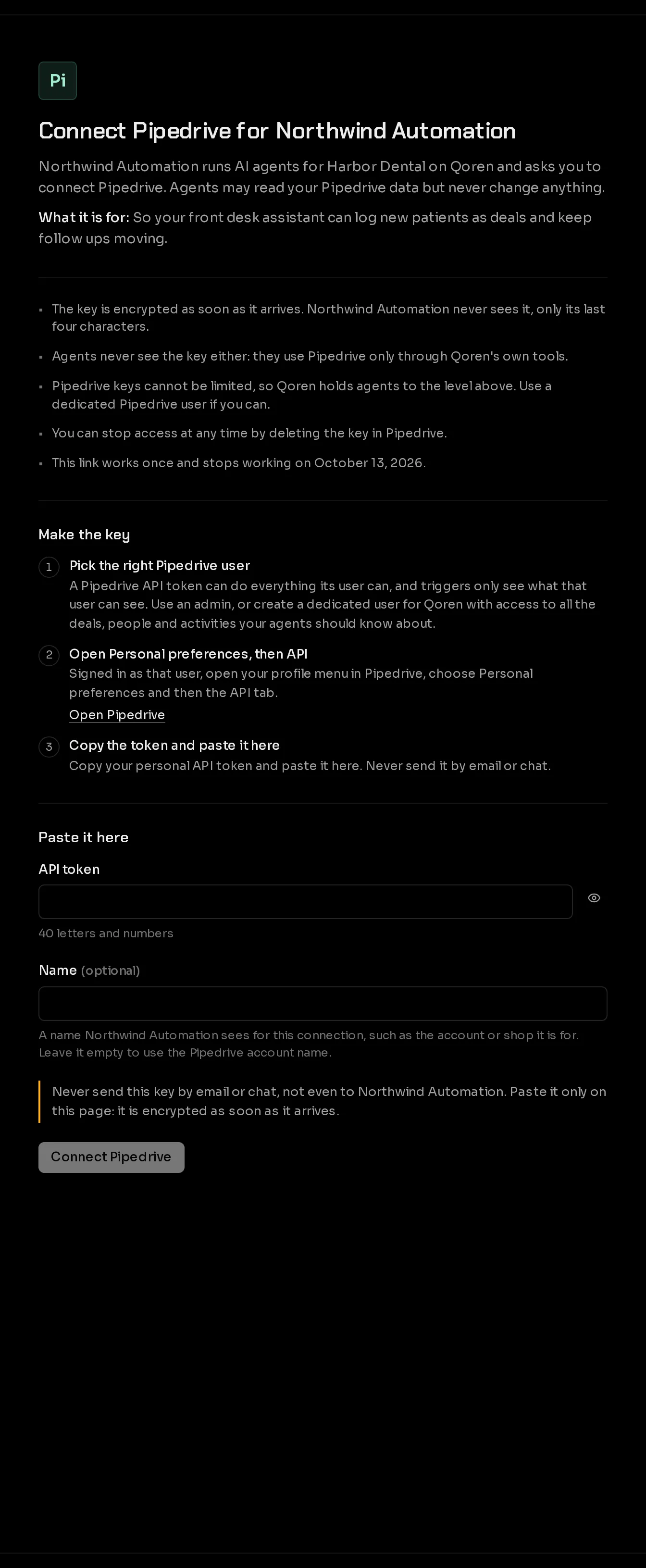
The link opens a page with no Qoren sign-in and none of Qoren's marketing. It shows:
- your organization's name, and Connect the tool for you (1);
- that you run AI agents for them on Qoren and what agents may do, plus what you wrote under What it is for;
- what happens to the key: encrypted on arrival, never seen by you or by the agents, and how to stop access by deleting the key in the tool;
- when the link stops working;
- Make the key (2), the same step-by-step guide you see in the console, with links into the tool;
- Paste it here, the key fields, an optional Name for the connection (empty uses the account name the tool reports), a reminder never to send the key by email or chat, and Connect the tool (3).
 123
123When the client clicks the button, Qoren checks the key exactly as it does in the console. A key that does not work, or cannot do what you asked for, is refused with the reason, and the client can try again with a better key. Once it is accepted, the page says it is connected and that you see the key only by its last four characters.
The page never appears in search results, and it is rate limited. A link that was used, revoked or expired, or whose client you archived, shows This link is no longer available or a page that does not exist.
After the client connects#
- Under Connected, the new connection appears for that client, marked Connected by the client through a connect link.
- Give agents access. A connection made through a link is used by no agent until you give access, as with any connection. Only that client's agents are offered: see give an agent access.
- Triggers that were waiting start. A template trigger that waited for this tool starts once an agent of the client has access.
Keep track of your links#
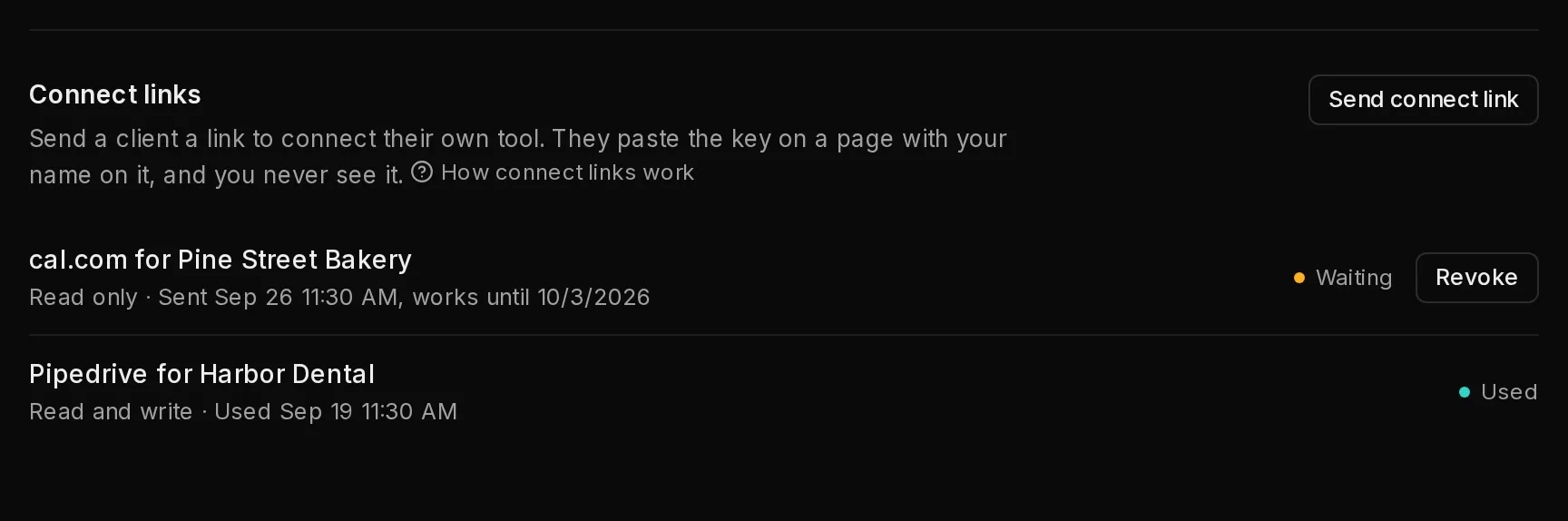
The Connect links section lists every link with its client, tool, level and status.
 12
12| Status | What it means |
|---|---|
| Waiting | Sent, not used yet. The line says until when it works. Revoke (2) stops it at once. |
| Used | The client connected the tool. |
| Expired | Seven days passed without it being used. |
| Revoked | You stopped it. |
Each use of a link is recorded in your account log.
When the client's key stops working#
If the client's key is deleted or expires, the connection needs a new key and its triggers pause. On a client's connection, Send new connect link makes a new link for the same client, tool and level in one click, ready to copy. When the client pastes a new key there, it replaces the old one on the same connection, and the paused triggers carry on by themselves. You never see that key either.
From the deploy page#
When you deploy an agent for a client from a template that wants a tool the client has not connected yet, the deploy page offers Send link to the client next to Connect. It makes a read only link on the spot, and the template's triggers wait until the client connects and the agent has access. See deploy an agent.
Frequently asked questions#
Does the client need a Qoren account?
No. The link is all they need. They never sign in, and they see only your organization's name, the tool and what you asked for.
Can I see the key my client pasted?
No. Nobody can: it is encrypted on arrival and never shown again. You see the last four characters, so you can tell keys apart.
Can a link be used twice?
No. A link works once. To connect another tool, or the same tool again, send a new link.
What should my client do to stop access?
Delete the key in the tool. That stops it at once everywhere. Then tell you, so you can disconnect the connection in Qoren as well.