
Create your own agent template
Build a reusable agent template in Qoren, from scratch, with AI, or from a copy. Set the persona, runtime, size, scheduled tasks, files and tools, then save it.
On this page
A template of your own lets you set up the same kind of agent again and again, for yourself or for each of your clients, without repeating the setup. You can start from nothing, let AI draft it, or copy an existing template and change it.
Start a new template#
- In the sidebar, click Templates.
- Click New template at the top right.
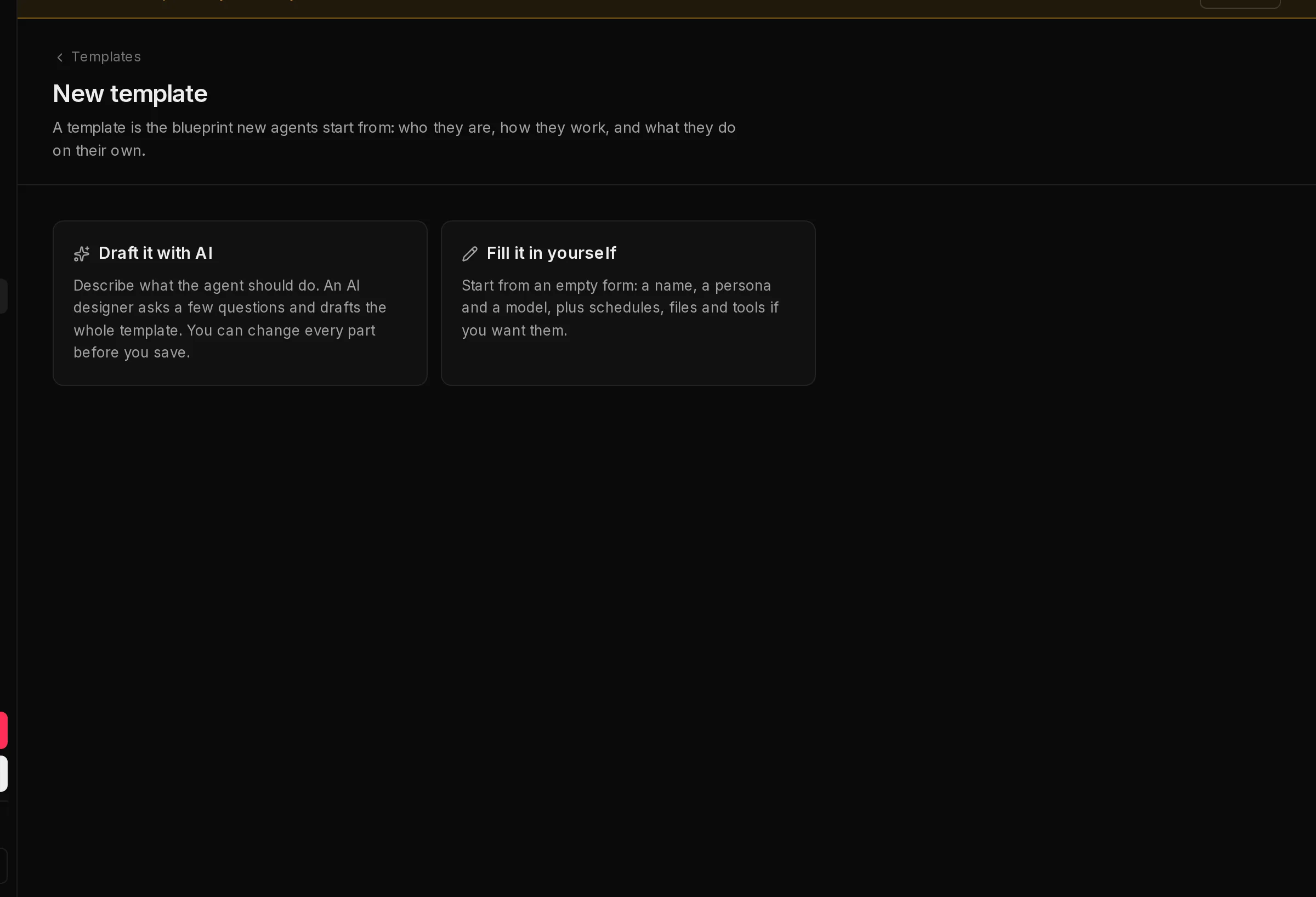
- Choose how to start (1, 2):
- Draft it with AI: describe what the agent should do, answer a few questions, and an AI designer drafts the whole template. Every part stays editable before you save. The designer's work counts as model usage on your account.
- Fill it in yourself: start from an empty form.
 12
12Changed your mind? Click Choose a different way to start above the form.
To start from an existing template instead, click Customize on its card in the gallery. The editor opens on a copy named after the original with -copy added, and skips this choice. See browse and use templates.
Fill in the editor#
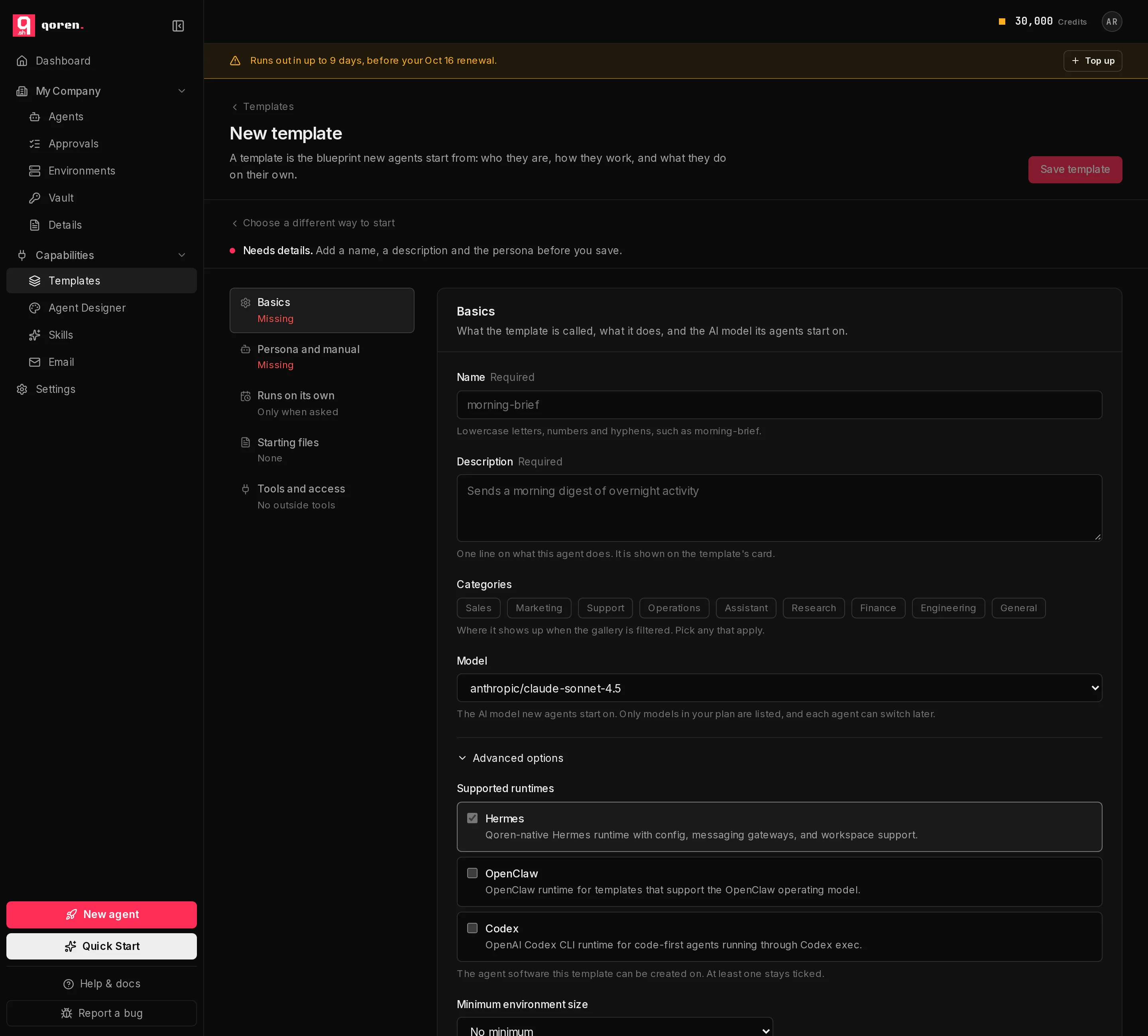
The editor is split into sections, listed on the left (1). Click a section to open it. A section that still needs something says Missing or Incomplete in red, and the line under the page title says Needs details and what is missing until everything required is filled in, then Ready to save.
 123456
Basics#
- Name (2), required: lowercase letters, numbers and hyphens, such as
morning-brief. - Description, required: one line on what the agent does. It is what people see on the template's card.
- Categories: pick any that apply. They drive the category filters in the gallery.
- Model: the AI model agents start on. Only models included in your plan are listed, and each agent can switch later.
Click Advanced options (3) for two settings most templates leave as they are:
- Supported runtimes (4): tick Hermes, OpenClaw, Codex or several. This controls which runtimes are offered when someone creates an agent from the template. At least one stays ticked. See runtimes for the differences.
- Minimum environment size (5): the smallest environment this agent runs well on, or No minimum. When you pick a size, also set the Requirement level: Recommended only shows a notice when someone deploys onto a smaller environment, while Required refuses the deploy. See environment sizes.
Persona and manual#
Two short documents every agent from the template reads before it does anything:
- Persona (required): who the agent is, its voice and tone, and what it must never do. It becomes the agent's
SOUL.md. - Operating manual: how it does the job, the steps it follows and what it hands back. It becomes the agent's
AGENTS.md.
Each box shows a live line count, and suggests a length to aim for while the text is still short. For tips on writing these, see agent identity and instructions.
Runs on its own#
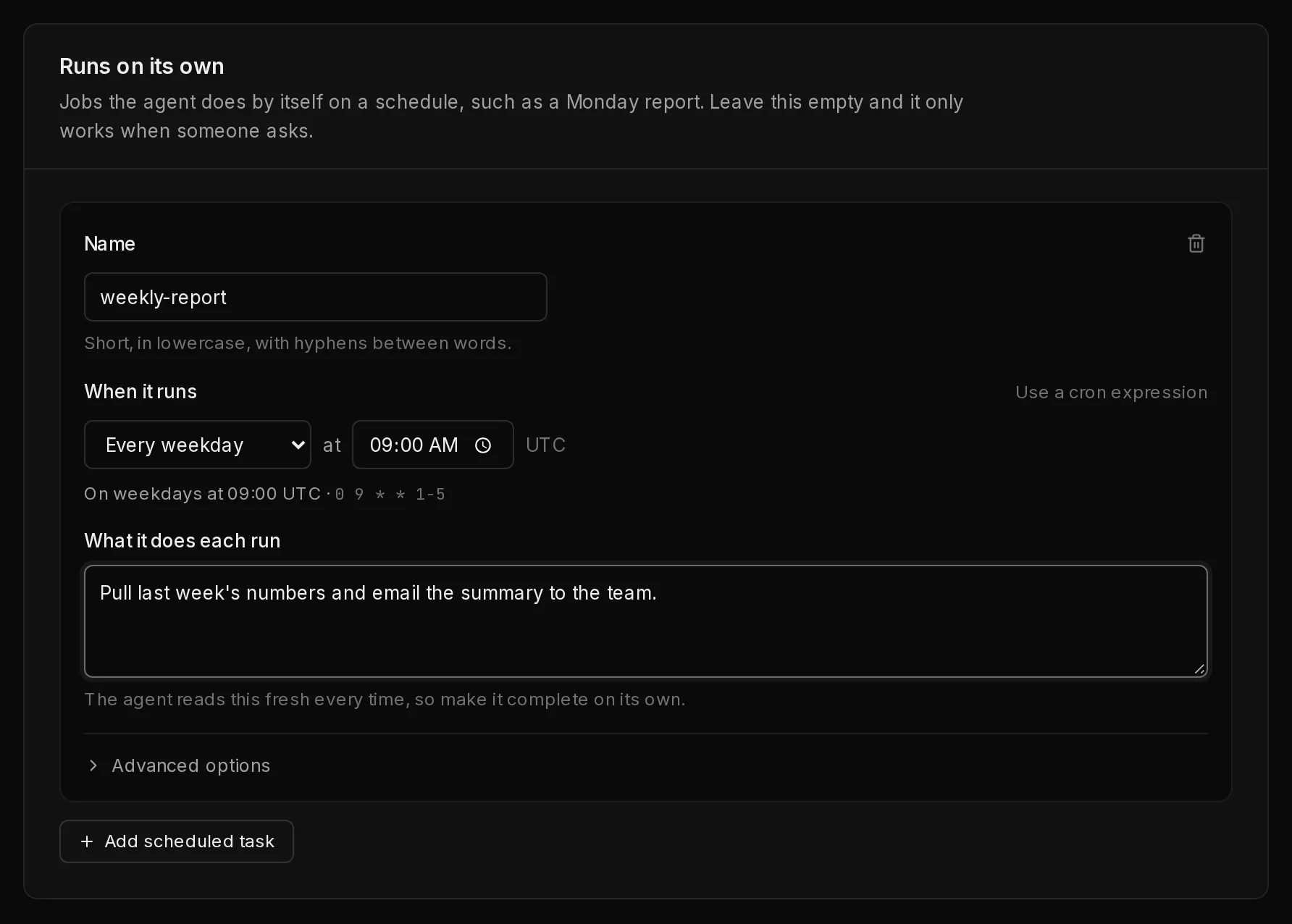
Scheduled tasks: jobs the agent does by itself, such as a Monday report. Leave this empty for an agent that only works when asked.
- Click Add scheduled task (5). A new task starts on every weekday at 09:00 UTC.
- Give the task a short Name, such as
weekly-report(lowercase letters, numbers and hyphens). - Under When it runs, pick how often (1): Every day, Every weekday, Every week, Every month, Every hour or Every few minutes, then the day and time that go with it. Times are in UTC. The line underneath says the schedule back in words, next to the cron expression it writes for you.
- For a schedule the picker cannot say, such as Mondays and Thursdays only, click Use a cron expression (2) and type a five-field cron expression in UTC. For example,
0 8 * * 1,4runs on Mondays and Thursdays at 08:00 UTC. Use the simple picker switches back, unless the expression is more than the picker can say, in which case it stays as cron and the form tells you so. - Under What it does each run (3), write the instruction the agent follows. Make it complete on its own: the agent reads it fresh every time.
- Most tasks need nothing else. Advanced options (4) holds three settings for busy environments: a Priority (Auto, Low, Normal, High or Critical) for which run goes first when several are due at once, Reserve the environment to keep it clear for a few minutes around each run (up to 15), and, with a reservation set, Hold other agents during the reservation, which pauses the other agents on that environment for that window.
 12345
12345More on schedules, including changing them on a running agent, is in schedules.
Starting files#
Knowledge the agent starts with, such as your ideal customer profile or a style guide. Each file has a path (for example workspace/ICP.md), a short note on what it is for, and its contents. The files are written into the agent's workspace when it is created, and the agent refines them as it learns.
Do not put passwords or API keys in workspace files. Keys belong in the vault.
Tools and access#
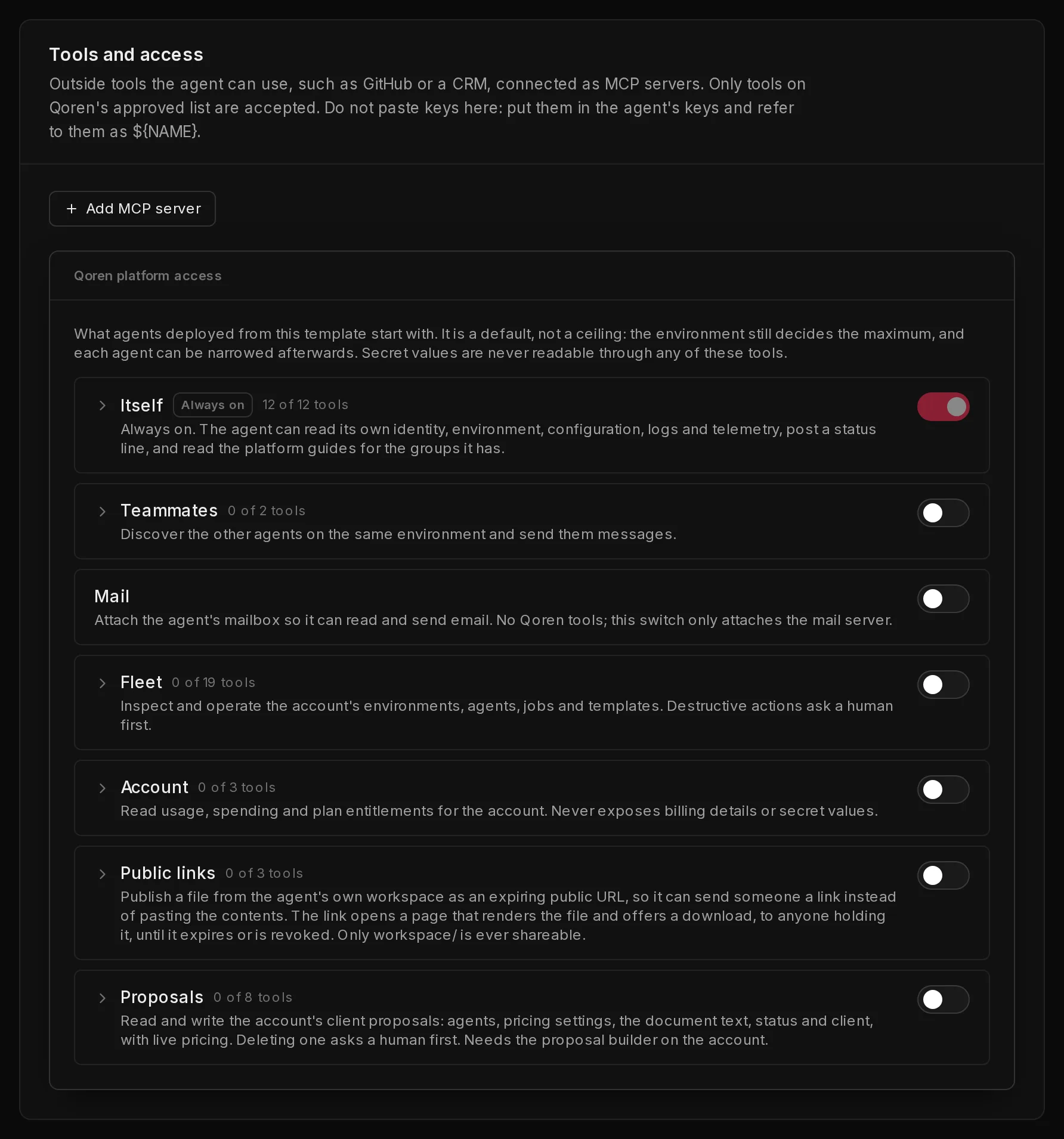
Outside tools the agent can use, such as GitHub or a CRM, are connected as MCP servers.
- Click Add MCP server (1).
- Give it a name and choose stdio (local) for a server that runs on the environment, or http (remote) for one reached over the internet. Fill in the command or address.
- Where the server needs a key, do not paste the key here. Put it in the agent's keys and reference it as
${NAME}, for exampleAuthorization=Bearer ${API_KEY}.
Only servers on Qoren's approved list are accepted.
Below the servers, Qoren platform access (2) sets what agents from this template may do through Qoren's own tools: message teammates, use their mailbox, see and manage your environments and agents, read usage, or share files by link. Every agent can always read its own details, and no tool ever reveals a secret value. This is a starting default: the environment still sets the maximum, and you can narrow each agent later. See agent permissions.
 12
12Save the template#
- Click Save template at the top right.
- Qoren runs security checks on the template before saving it. This takes a moment.
What happens next depends on the checks:
- Nothing found: the template is saved and its page opens.
- Serious problems: the template is not saved. The findings are listed, with a Fix with AI button that revises the template to address them and saves it again. You can also fix them by hand and save again.
- Minor warnings: the template is saved, and the line under the title reads Saved, with warnings. Click Fix with AI to clean them up, or keep the template as it is and open its page.
Your new template now appears in the gallery with the Yours badge.
Edit, copy or delete your template#
Templates you made have extra buttons, both on their card in the gallery and on their own page.
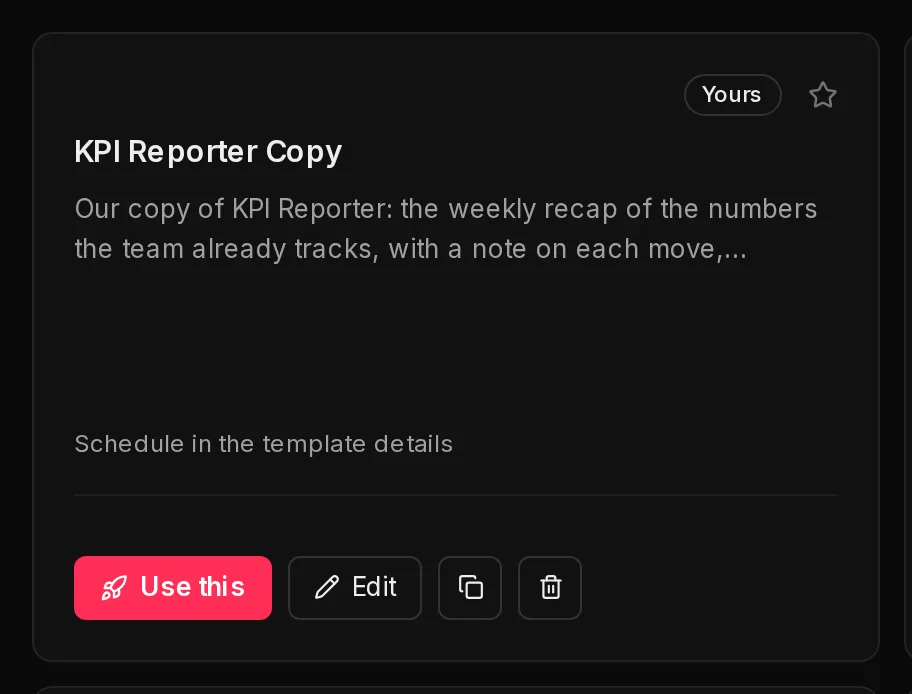 123
123On the template's page, the same actions sit next to Deploy, which starts a new agent from it:
 1234
1234- Edit opens the editor on the template itself, titled Review your template. This is also where you land after designing an agent with AI. Click Save changes (1) when you are done, or Create an agent from this (2) to go straight to the new agent form with this template picked. With changes not yet saved, that button reads Save and create an agent and saves them first. Renaming the template moves it, and the agents already created from it follow the new name.
- Duplicate (the copy button on the card) opens the editor on a copy, so the original stays as it was.
- Delete asks you to type the template's name to confirm. Deleting cannot be undone. Agents already created from it keep running, but they lose their link to it: if one is later rebuilt, the template's setup steps are skipped.
 12
12Frequently asked questions#
Who can see my templates?
Templates you create belong to your organization. They show in your gallery with the Yours badge and are not shared with other Qoren customers.
Can I edit a template that came with Qoren?
No. Click Customize on it to make your own copy, then edit the copy.
Why can't I save my template?
The line under the title lists what is missing, and the sections that need something are marked Missing or Incomplete. A name, a description and the persona are required, and every scheduled task needs a name, a schedule and an instruction. If the security checks found a serious problem, fix it or use Fix with AI.
Does changing a template update agents I already created?
No. Agents are created from a template once and then have their own settings. Change a running agent in its own Settings.