
Browse and use agent templates
Find a ready-made agent in the Qoren template gallery. Search, filter by category, schedule or tool, star favorites, then deploy one or customize a copy.
On this page
A template is a ready-made agent: its job description, personality, schedule, starting files and tools, packaged so you can set up a working agent in a few clicks. The template gallery in the console lists every template you can use, including the ones you made yourself.
To browse the templates without signing in, see the public agent template gallery.
Full-time hires and specialists#
The gallery has two kinds of template:
- Full-time hires, such as the Executive Assistant, the GTM Engineer or the Local Marketing Manager, do a whole job. One agent runs a full week of scheduled work across several duties, writes one weekly report you can forward to a client, and comes with a client access checklist. Each duty starts once its tool is connected and stays silent until then.
- Specialists do one job, such as triaging an inbox or watching reviews. Every duty of a full-time hire is also available as a specialist, so you can deploy just that part.
Many templates also come with triggers: events they react to the moment they happen, like a failed Stripe payment, a new pull request or a form submission, instead of waiting for their next scheduled check. After you deploy one, its triggers appear as suggestions on the agent's Triggers tab, ready to connect. Triggers from the same source share one webhook, so a template with four GitHub triggers needs one GitHub webhook that sends all four events, not four webhooks. Until you connect them, the template's schedule covers the same work. See webhook triggers.
Full-time hires have their own Full-time hires section at the top of the gallery, above the specialists. Ask a full-time hire for a sample week of a website and it builds one from public information alone, before you connect anything.
Find a template#
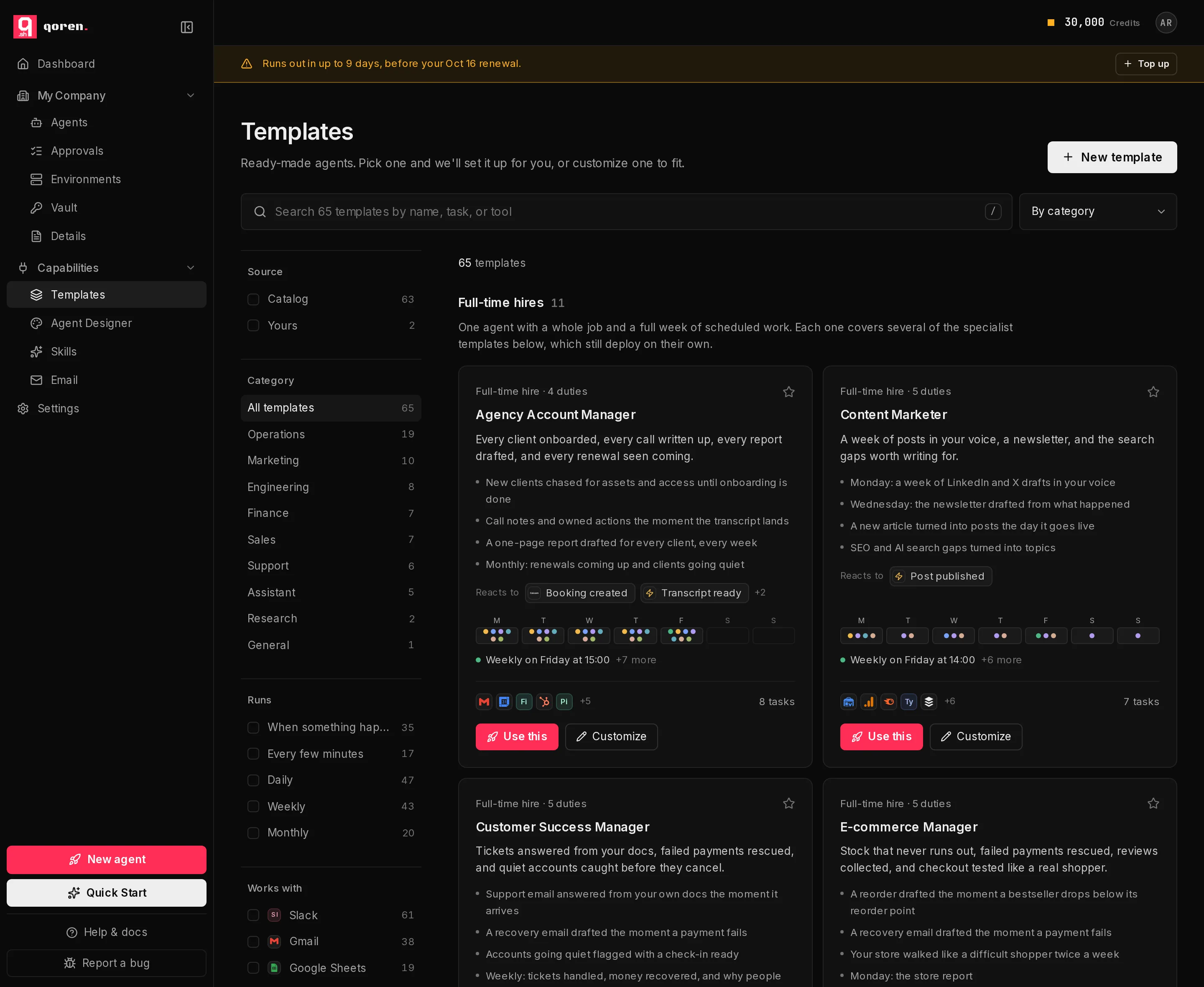
In the sidebar, under Capabilities, click Templates.
 123456789
- Search (1) matches a template's name, description, category, scheduled tasks and the tools it works with. Every word you type has to appear somewhere, and a slightly misspelled name still finds it. Press
/anywhere on the page to jump to the search box, and Esc to clear it. - Sort (2): By category groups the cards under category headings, A to Z lists them by name, and Most scheduled tasks puts the busiest first. While you search, the best matches come first.
The column on the left narrows the list. Each option shows how many templates it would leave, given everything else you picked:
- Source (3): Catalog for the templates that come with Qoren, Yours for the ones you made.
- Category (4): one category at a time. All templates clears it.
- Runs (5): how often a template's scheduled tasks run: every few minutes, daily, weekly or monthly. When something happens shows the templates that can also react to an event, such as a failed payment or a new pull request.
- Works with (6): the tools a template is built to use, such as Gmail or Stripe. Pick two and you see the templates that work with both.
Every filter you pick shows as a chip above the cards: click a chip to remove that filter, or Clear all to start over. The filters are kept in the page address, so a filtered view survives a reload and can be shared as a link. On a phone, the categories become a row of buttons above the cards and the other filters sit behind Filters.
Each card shows the template's name, its description, the events it reacts to under Reacts to when it has any, and a week strip: one cell per day, with a dot for each scheduled task that runs that day and a dashed line where a task repeats through the day. Under the strip is the first task's schedule, then the tools the template works with and how many scheduled tasks it has. Templates you made carry a Yours badge, and their schedule is on their own page. Click a card to open that page.
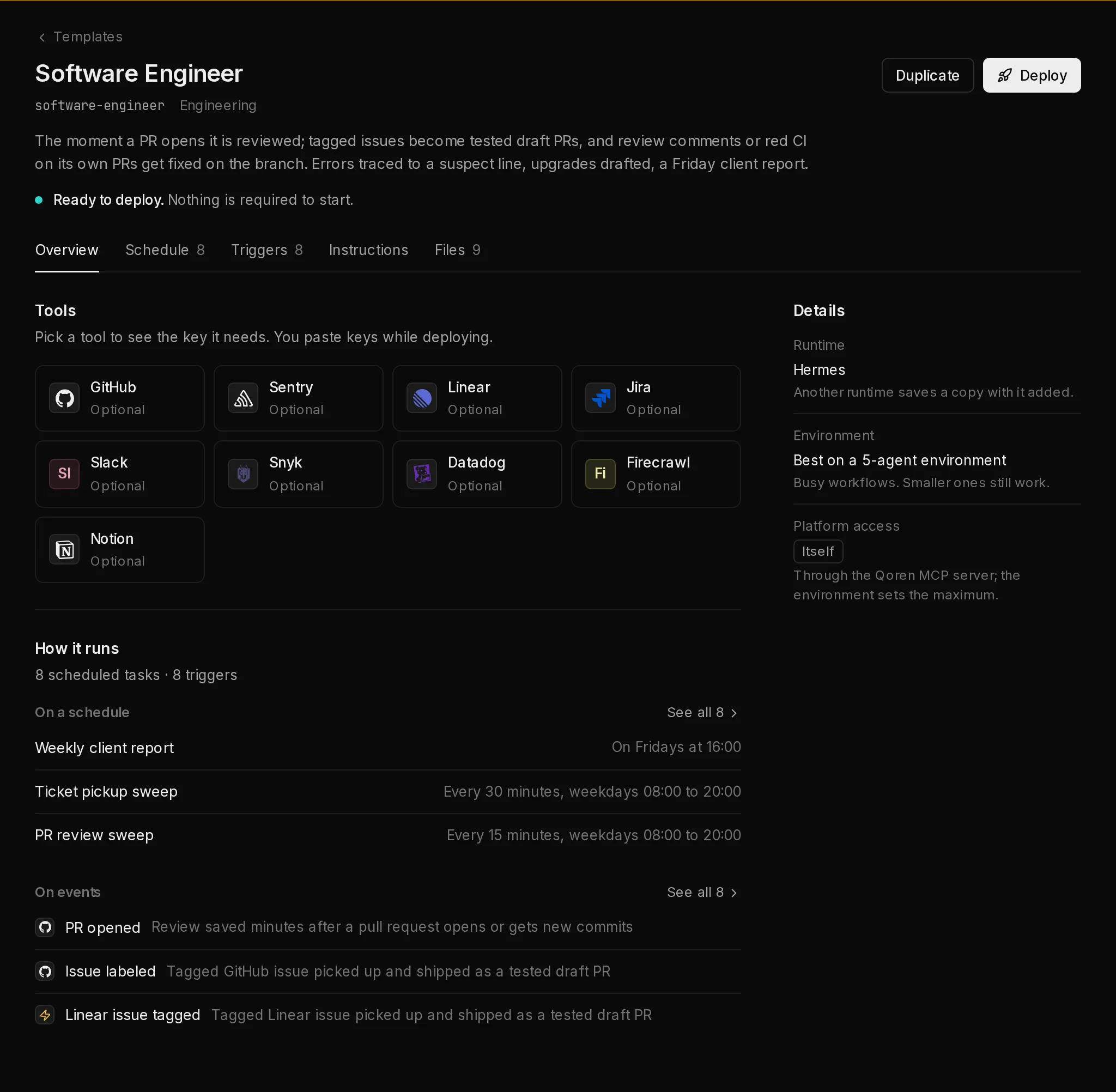
A template's page opens on Overview: the tools it works with as tiles, How it runs with its first few scheduled tasks and triggers, and a Details column. The tabs (1) hold the rest: Schedule lists every scheduled task with when it runs (times are UTC), Triggers the events it reacts to, Instructions its soul.md, agents.md and config.yaml, and Files the files the agent starts with. A tab only shows when the template has something for it, and the tab you pick is kept in the page address, so a link opens it.
 1234
1234Click a tool (2) to see the key it needs, the least access to give it, and which scheduled tasks and triggers use it. See all (3) opens the Schedule or Triggers tab. On those tabs, click a row to open it: a task shows its exact schedule and what it does on each run; a trigger shows where its events come from, which events and conditions it acts on, and the scheduled task it speeds up, if any. Deploy (4) opens Create an agent with the template picked, and Deploy and connect in a tool's panel opens it with that tool ready to connect.
Star your favorites#
Click the star (7) on a card to add it to your favorites; click it again to remove it. Starred templates move to a Starred section at the top of the gallery, above the full-time hires, and a Starred only filter appears in the column so you can show just them.
Favorites are saved in your browser, so they do not follow you to another browser or computer.
Use a template as is#
- On the card, click Use this (8).
- Qoren opens the new agent form with that template picked. Give the agent a name, choose where it runs and fill in any keys the template asks for.
The full walkthrough is in create an agent. Keys the template needs can come straight from your vault, so you do not have to paste them again.
Customize a template#
When a template is close but not quite right, make your own copy:
- On the card, click Customize (9).
- The template editor opens on a copy, named after the original with
-copyat the end. - Change what you need, such as the instructions, the schedule or the files, and click Save template.
The original stays as it was. Your copy appears in the gallery with the Yours badge, ready to use. Every step of the editor is explained in create a template.
Your own templates#
On templates you made, the card offers more than Use this:
- Edit changes the template itself.
- The copy button makes a duplicate you can change separately.
- The bin deletes the template.
Templates that come with Qoren cannot be edited or deleted, only customized into your own copy.
Frequently asked questions#
Are the templates free to use?
Using a template costs nothing extra. The agent you create from it runs on your plan like any other agent, using credits for hosting and model use. See pricing.
Can I change a Qoren template?
Not directly. Click Customize to make your own copy, then change the copy however you like.
Why do my favorites disappear on another computer?
Favorites are stored in your browser. Star them again on the other computer or browser.
Does editing a template change agents I already created from it?
Your agents keep running as they are. A template is the starting point for new agents; to change a running agent, use its own settings.