
Design an agent with the AI designer
When no template fits, describe the job and Qoren's AI designer drafts a reusable blueprint with you. Answer its questions, review, save and launch.
On this page
When none of the templates matches the job you have in mind, you can describe it in plain words and let an AI designer write the template for you. The designer asks a few follow-up questions, drafts the whole blueprint (the agent's persona, its instructions and its scheduled jobs), and saves it to your organization's templates, so you can launch this agent and more like it whenever you want.
Open the designer#
- In the sidebar, click New agent.
- On the template gallery, click the first card, Design your own.
The page changes to Design your own blueprint. To go back to the gallery at any point, click ← Back to blueprints. For the full walk through the gallery, see create an agent from a template.
Describe the job#
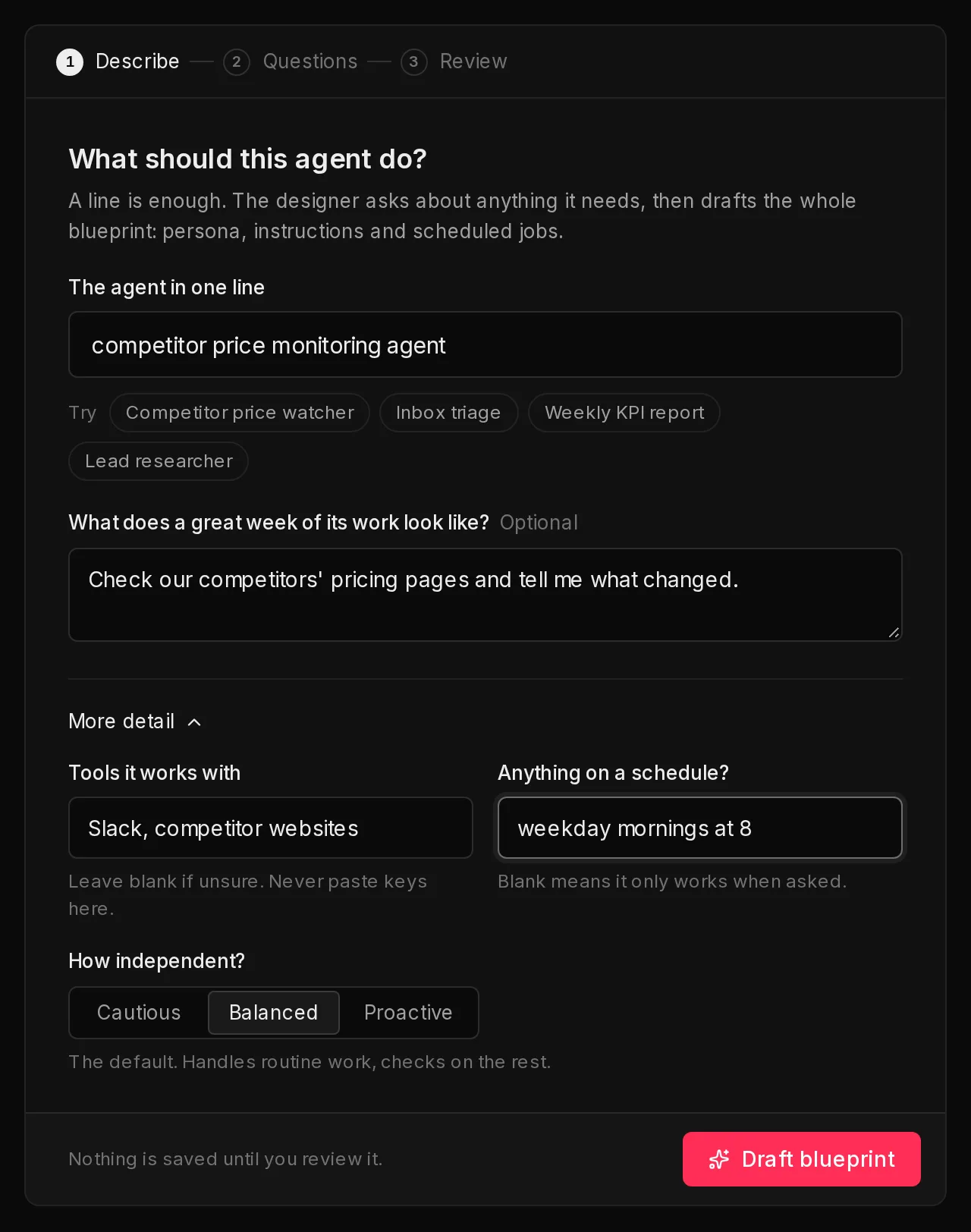
The designer works in one panel with three steps, shown along its top: Describe, Questions and Review.
- The agent in one line (1): what the agent is, such as "competitor price monitoring agent". This is the only thing you must fill in. To see how it works, click one of the examples next to Try, which fill in this line and the next.
- What does a great week of its work look like?: optional, but it helps the designer get it right the first time.
- Click More detail for three more optional settings:
- Tools it works with: the services and sites it uses, such as Slack or your CRM. Leave it blank if you are unsure. Do not paste keys here; you add them when you create the agent.
- Anything on a schedule?: work it should do by itself, such as "daily 8am digest". Leave it blank if it should only work when asked.
- How independent? (2): Cautious asks before it acts, Balanced is the default, and Proactive takes initiative and reasons more deeply.
- Click Draft blueprint (3), or press Enter in the first box.
 123
123Watch it work#
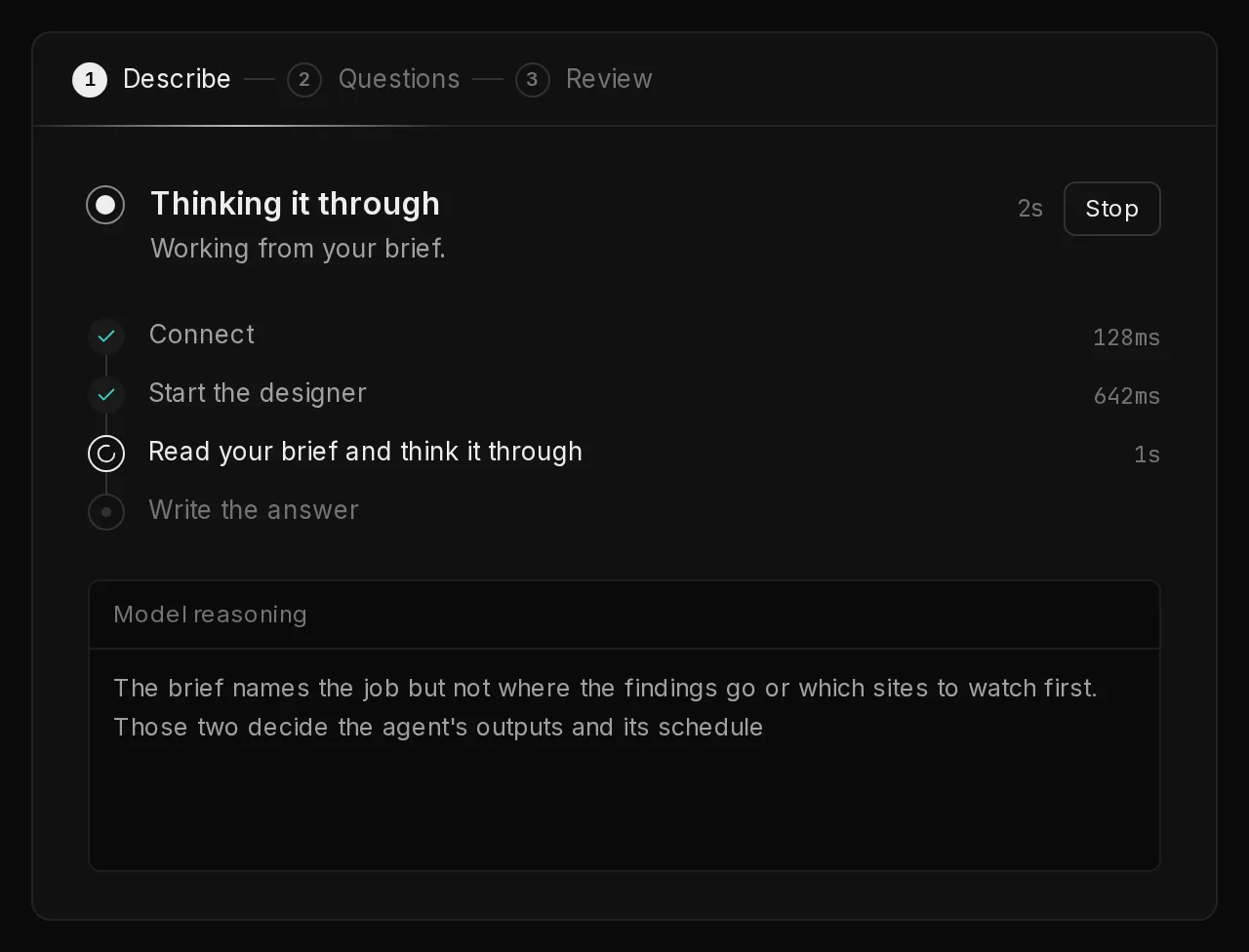
While the designer works, the panel shows what it is doing right now, such as Thinking it through or Writing your blueprint, with a timer. Below that are its steps and how long each one took. A box shows the model's reasoning while it thinks, when the model shares it, and then what it has written so far: its questions, or the parts of the blueprint as each one is done.
To cancel, click Stop (1). You go back to where you were, with everything you typed still there.
 1
1Answer its questions#
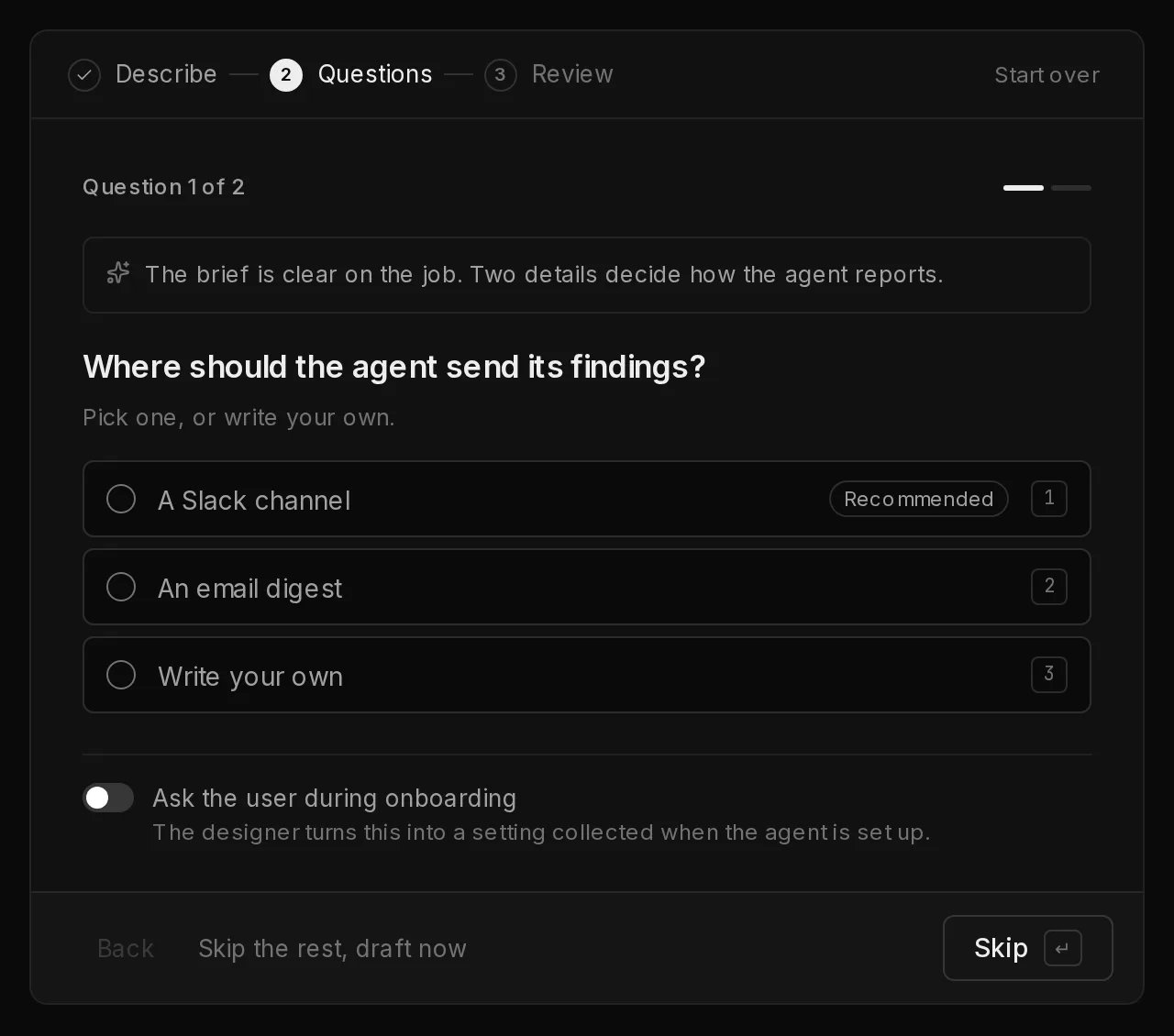
If the brief leaves something open, the designer asks a few questions instead of guessing. They come one at a time, with Question 1 of 2 and a short bar at the top showing where you are. Its reason for asking is shown above the first question.
- Pick one of the suggested answers (1). The one it thinks fits best is marked Recommended. You can also choose Write your own and type an answer. On a keyboard, the numbers 1, 2, 3 pick an answer.
- If the answer depends on the person who will use the agent, turn on Ask the user during onboarding (2). The designer then turns that detail into a setting collected when the agent is set up, instead of fixing it in the blueprint.
- Click Next (3) to move on. Picking a single answer moves on by itself. A question you leave blank shows Skip instead and lets the designer decide.
- On the last question, click Send answers. The designer may ask another round, or finish the draft.
Click Back, or a segment of the bar, to change an earlier answer. To stop answering and get a draft now, click Skip the rest, draft now (4). Start over, at the top right, clears everything and returns to the first step.
 1234
1234Review and save the blueprint#
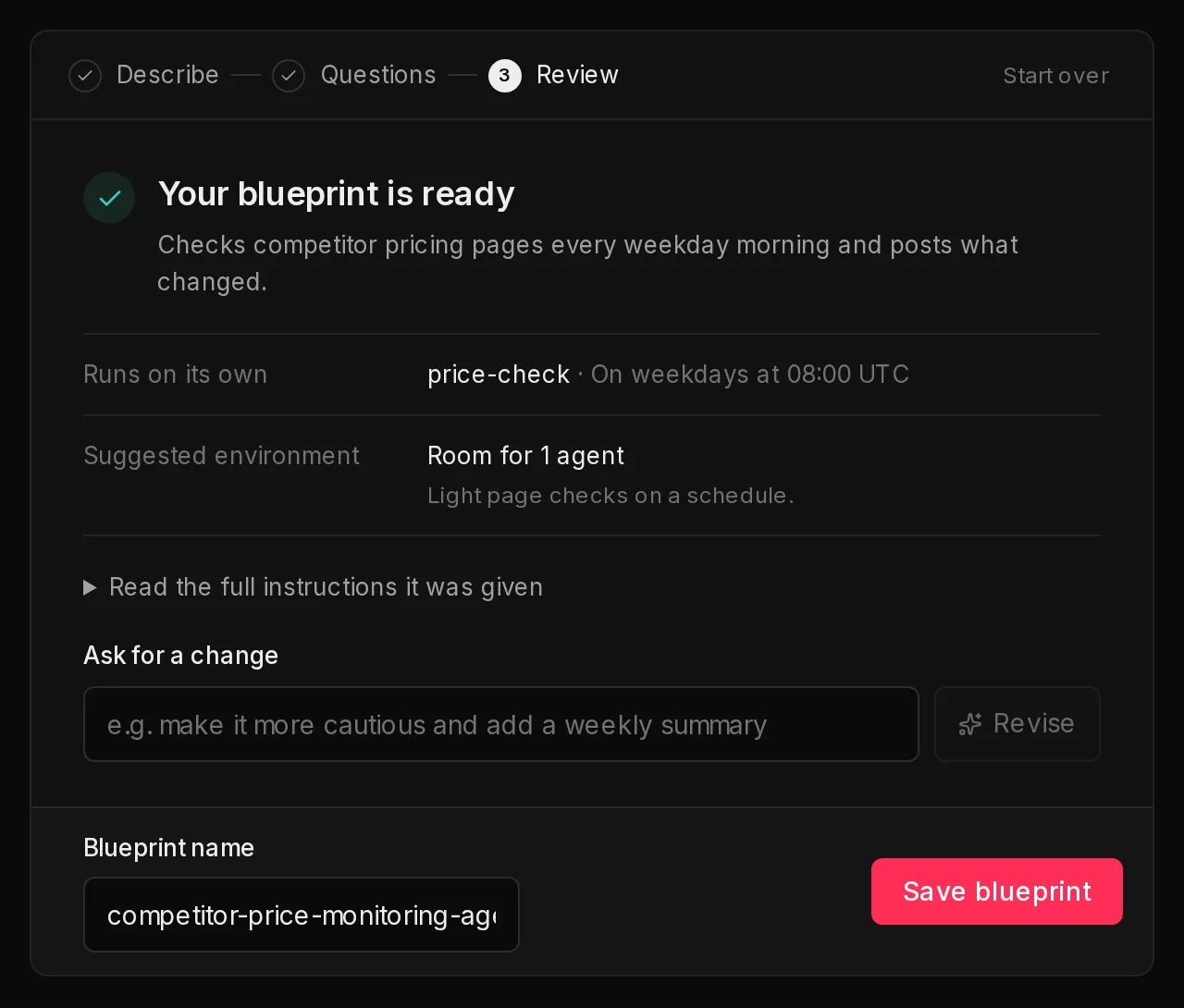
When the draft is ready, the Review step shows Your blueprint is ready with a one-line description of what the agent does, and:
- Runs on its own: any jobs it will run on a schedule, in plain words.
- Suggested environment: the environment size it suggests for this agent, with a short reason. It is a recommendation only. See environment sizes.
- Read the full instructions it was given: opens the persona and instructions the designer wrote, so you can read exactly what the agent will be told.
To change something, type it in Ask for a change (1), for example "make it more cautious and add a weekly summary", and click Revise or press Enter. The whole draft is revised.
When you are happy with it:
- Check the Blueprint name (2). It is filled in from your first line; change it if you like.
- Click Save blueprint (3). The button reads Checking and saving… while a safety review runs.
 123
123After saving, your new blueprint opens in the template editor, so you can look over each part and change anything by hand. When it reads right, click Create an agent from this to name the agent, check the keys and create it, as in create an agent from a template.
If the safety review has notes#
Every blueprint goes through a safety review when it is saved. It checks the draft for things like runaway spending or risky commands.
- This needs fixing before it can be saved: something serious was found and the blueprint was not saved. Each finding comes with a suggested fix. Click Fix with AI to have the designer revise the draft to address them and save again.
- Saved, with notes from the safety review: the blueprint was saved, with smaller points worth a look. Click Fix with AI to address them, or click Keep it as is to open it unchanged.
Frequently asked questions#
Where does the blueprint go after I save it?
To your organization's templates. It shows in the template gallery when you create an agent, so you can launch more agents from it later. See templates.
Which runtime does a designed blueprint use?
The designer writes blueprints for Hermes, and Hermes is selected when you create the agent. You can pick another runtime on the next step; see runtimes.
Can I edit the blueprint by hand?
Yes. It opens in the template editor as soon as it is saved, and you can open it again later from Templates in the sidebar. Create a template covers editing templates.
Does the designer pick a model for the agent?
No. A designed blueprint leaves the model open, so agents made from it use your organization's default model. You can change an agent's model after it is created.