
Connect your tools with Integrations
Connect Pipedrive, GitHub, Stripe and more with one key. Qoren sets up the triggers itself and lets only the agents you choose use the tool, at your level.
On this page
- What a connection is
- Why a key, and what that means
- Who can connect
- Connect a tool
- Give an agent access
- Choose which tools an agent may use
- Triggers and tools work together
- When you deploy an agent
- Keys in the Vault
- Replace a key or disconnect
- Keep it safe
- In a Custom agent
- Coming soon: HubSpot and Gmail
- Frequently asked questions
An integration connects one of your tools, such as your CRM, your code host or your payment provider, to Qoren once. You paste a key you made in that tool, and from then on Qoren does the plumbing: it sets up the tool's webhooks itself so events can wake your agents, and it lets the agents you pick look things up and make changes in the tool through Qoren's own tools. The key stays with Qoren. It never reaches an agent's machine.
Integrations is rolling out account by account. If the sidebar has no Integrations under Capabilities, it is not on your account yet, and the page says Integrations is not available on this account yet.
What a connection is#
A connection is one key for one account in one tool, for example your company's Pipedrive. Each connection gives you two things:
- Triggers. Pick an event, such as "Deal added", on an agent's Triggers tab, and Qoren registers the webhook in the tool for you. There is no URL or signing secret to copy. See wake an agent from a connected tool.
- Tools. An agent you give access can call a short list of curated actions, such as "Find a deal" or "Add a note", through the platform MCP. It never gets the key, and there is no raw API access: only the actions listed for that tool.
Nothing is shared until you say so. A new connection can be used by no agent at all until you give one access.
The tools you can connect today:
| Tool | Guide |
|---|---|
| Pipedrive | Connect Pipedrive |
| GitHub | Connect GitHub |
| Linear | Connect Linear |
| Stripe | Connect Stripe |
| Resend | Connect Resend |
| SendGrid | Connect SendGrid |
| cal.com | Connect cal.com |
| Shopify | Connect Shopify |
| Slack | Connect Slack as an integration |
HubSpot and Gmail show as Coming soon; see below.
Why a key, and what that means#
You connect a tool by pasting a key you create in that tool, not by clicking "Allow" on a sign-in page. That keeps things simple: there is no app to install or approve, and you decide exactly how much the key can do. Each guide walks you through making a key with the least access Qoren needs.
It also comes with three things to know:
- Some keys cannot be limited. A Pipedrive or cal.com key can do everything its user can. Qoren then keeps agents to the level you choose, and says so in the connect dialog and on the connection.
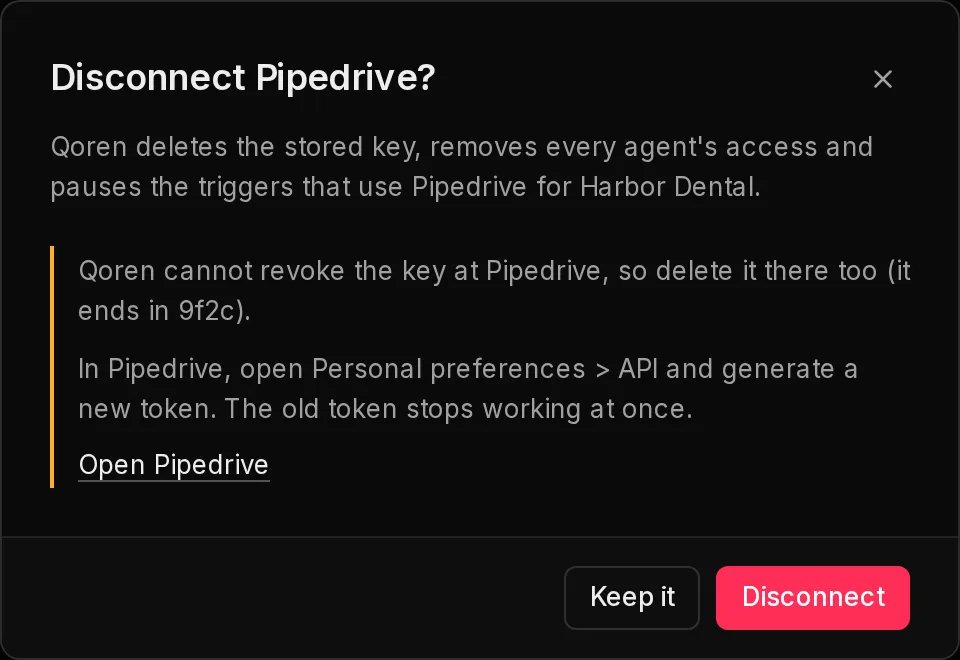
- Qoren cannot revoke a key you pasted. When you disconnect, Qoren deletes its copy, and you delete the key in the tool too. The disconnect dialog says where.
- Keys belong to a person and can expire. If the person leaves or the key lapses, the connection needs a new key, and Qoren tells you.
Who can connect#
Only the owner of your Qoren organization connects tools, gives agents access, replaces keys, disconnects and sends connect links. Other members see the same page read only, with Only the account owner can connect tools, change which agents use them or send connect links. You can see what is connected. at the top.
An agency can also let a client connect their own tool without ever seeing the key: see let a client connect their own tool.
Connect a tool#
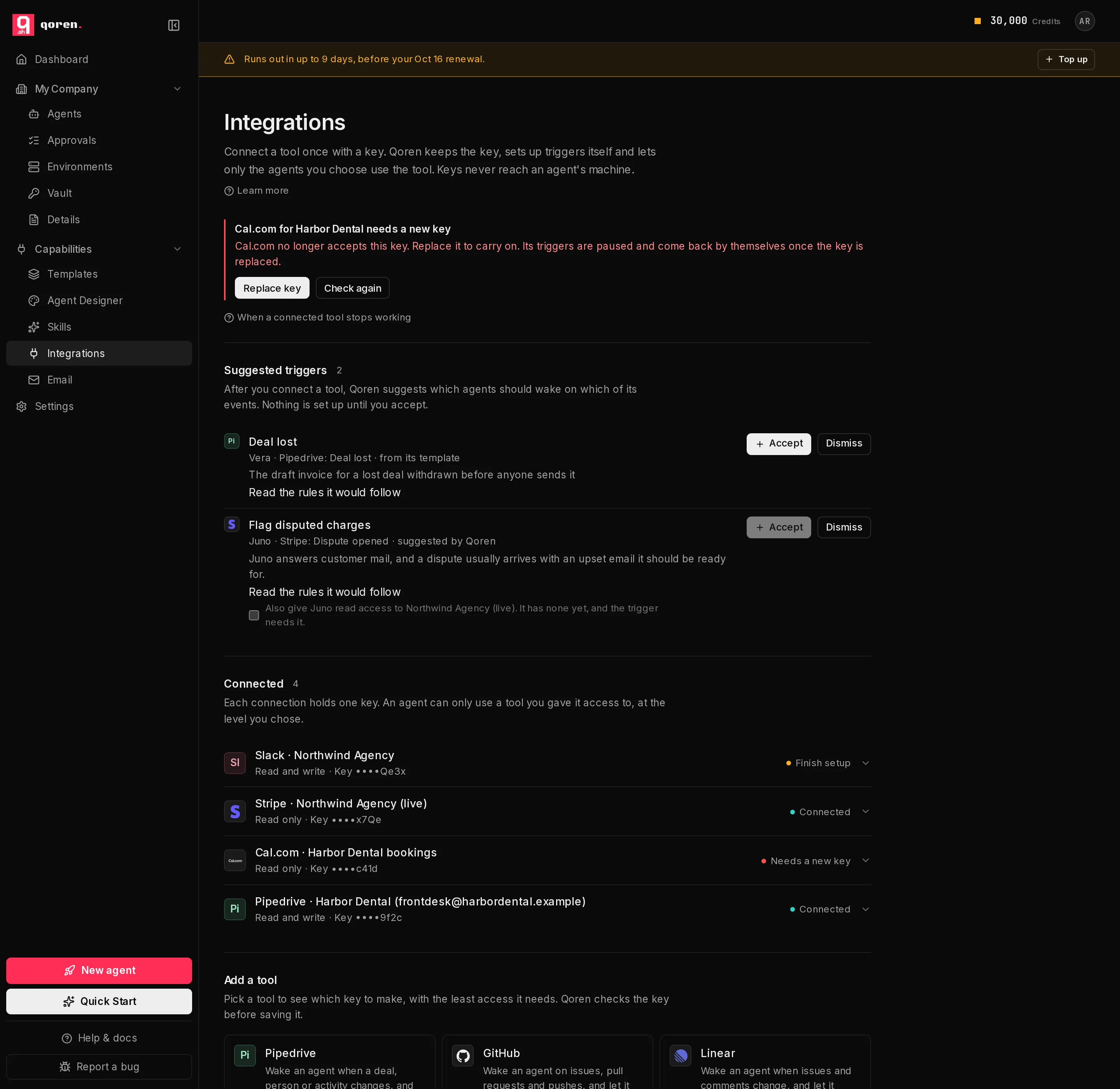
- In the sidebar, under Capabilities, click Integrations (1). Tools you already connected are under Connected (2), each with its account, level, the last four characters of its key and its status.
- Under Add a tool, click the tool you want (3).
 123
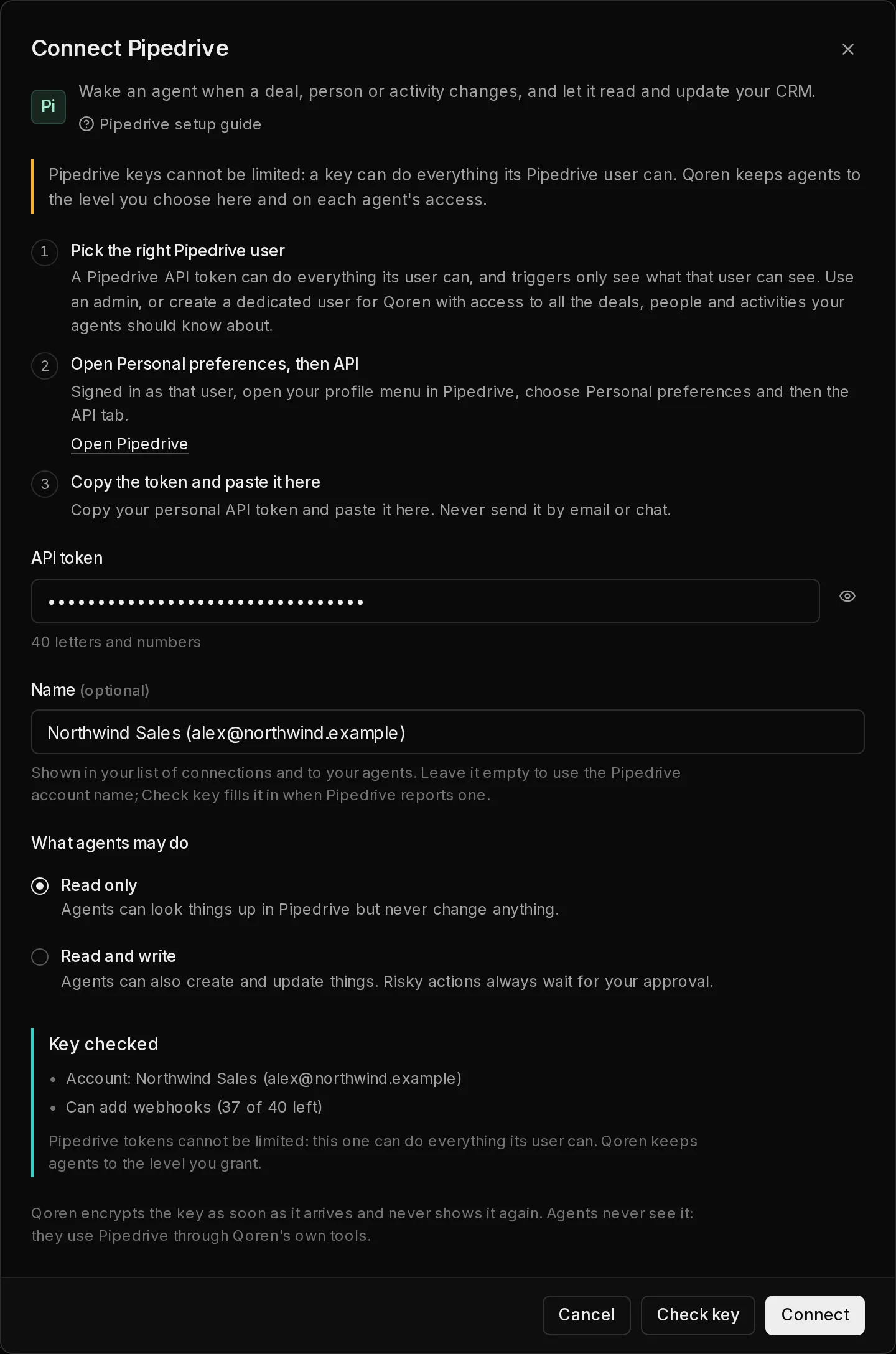
123- The Connect dialog lists the steps to make the key in that tool (1), with a link that opens the right page there. Follow them; each tool's guide explains every permission.
- On an agency account, choose Which client is this for?. A client's connection can only ever be used by that client's agents. Leave No client (your own account) for your own tools.
- Paste the key into the field (2). Some tools need more than one value, such as Shopify's store address, client ID and client secret.
- Click Check key. Qoren tries the key without saving it and shows Key checked (3) with the account it belongs to, what it can do (for example Can add webhooks (37 of 40 left)) and any notes, or says why it was refused.
- Optionally, give the connection a Name, such as "Acme live" or "Harbor Dental CRM". It is what your list of connections and your agents call it. Check key fills it in with the account name when the tool reports one; type over it to choose your own. Some keys cannot say which account they belong to, and then a name is the way to tell connections apart.
- Under What agents may do (4), choose Read only, where agents can look things up but never change anything, or Read and write. A choice the key cannot support is greyed out.
- Click Connect (5).
 12345
12345Qoren checks the key again when you click Connect and refuses it if it does not work or cannot do what you chose, for example Read and write with a key that cannot write. The key is encrypted the moment it arrives and is never shown again, to you or to anyone: the console only ever shows its last four characters.
Slack is the one tool with a step left after connecting: its connection shows a short checklist to finish in Slack. See connect Slack as an integration.
Give an agent access#
A new connection does nothing until you give an agent access to it.
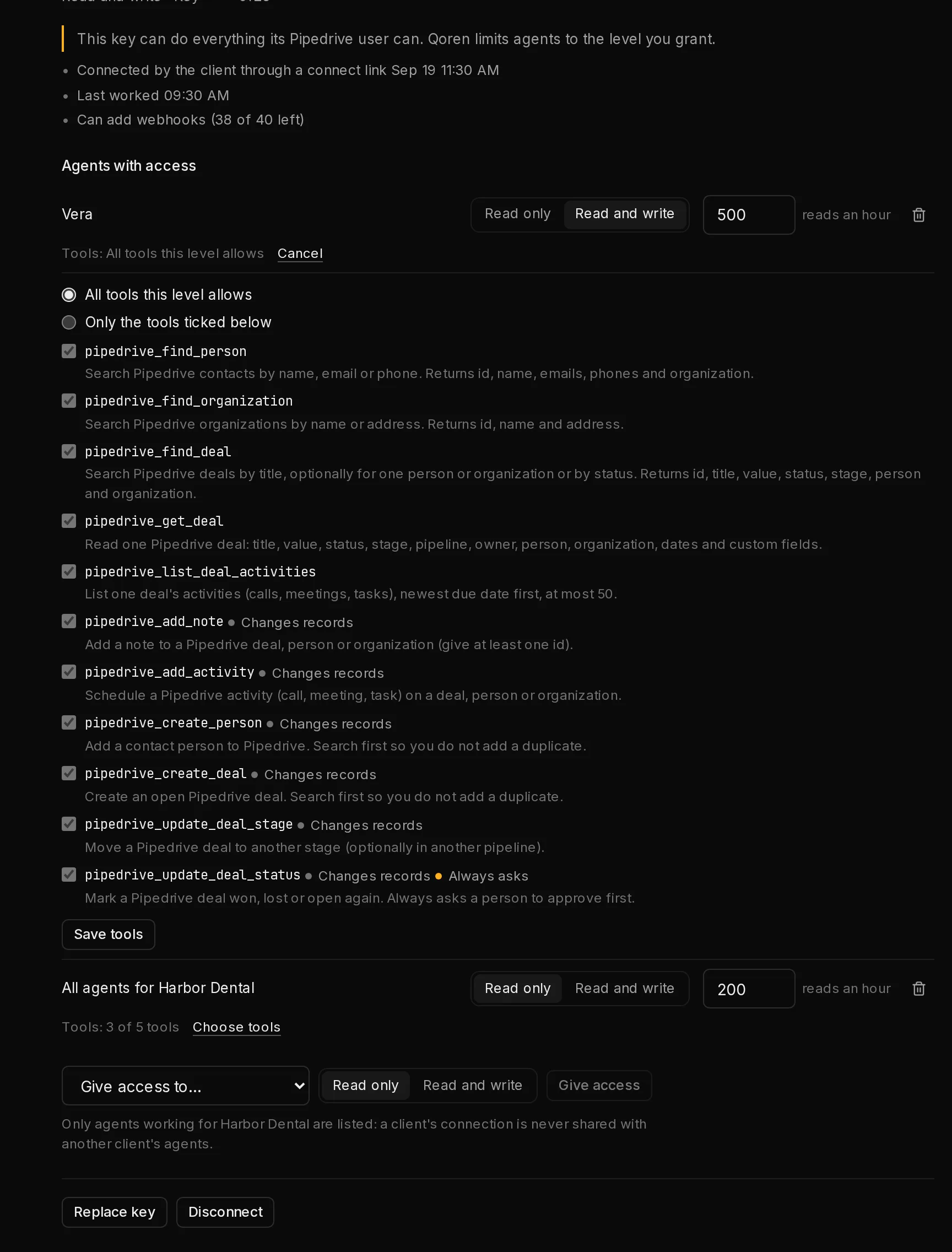
- Under Connected, click the connection to open it. Agents with access lists who may use it.
- In the Give access to… menu (5), choose one agent, or All agents to cover every agent at once. On an agency account that choice reads All agents for the client (only that client's agents are listed) or All agents with no client.
- Choose Read only or Read and write. An agent can never get more than the connection's own level.
- Click Give access.
Each agent with access gets its own line with its level (1), and how many records it may read in an hour (2), 500 to start. You can set it from 1 to 10,000; see read limits. The bin icon removes that access. An agent's own line wins over an All agents line.
 12345
12345Removing an agent's access also pauses that agent's triggers on the connection, unless an All agents line still covers it. Give access again and they come back.
Choose which tools an agent may use#
By default an agent may use every tool its level allows: the reading tools, plus the ones that change records on Read and write. To narrow that:
- On the agent's line, click Choose tools.
- Pick Only the tools ticked below (3) and tick the ones it needs. Tools that change something are tagged Changes records, and tools that always wait for a person are tagged Always asks (4).
- Click Save tools.
Ticking a tool never goes past the level: a Read only agent is never offered a tool that changes records, whatever is ticked.
Triggers and tools work together#
A trigger wakes the agent with the record that changed; the tools let it look around and act. A typical setup for Pipedrive is a trigger on Deal added and the tools Find a person and Add a note, so the agent can research a new lead and leave its findings on the deal.
- Triggers are set up per agent on its Triggers tab. The agent must have access to the connection first. See wake an agent from a connected tool.
- Tools reach the agent through the Integrations group of the platform MCP. The agent sees only the connections it has access to, with only the tools its access allows.
- An agent can ask for a trigger itself. It waits for your approval every time, whatever the agent's autonomy. See triggers an agent asks for.
- After you connect a tool, Qoren may suggest triggers for agents that would use it. Nothing is set up until you click Accept. See suggested triggers.
When you deploy an agent#
When a template comes with triggers for a tool you can connect, the deploy page says This agent wants that tool. If it is connected, tick Let it use the connection, read only, to give the new agent access as part of the deploy. If it is not connected yet, deploy anyway: the template's triggers wait as Waiting for a connection and start by themselves once the tool is connected and the agent has access. Connect opens the Integrations page in a new tab, and on a client's environment Send link to the client makes a connect link on the spot.
Keys in the Vault#
Keys you saved in the Vault for an agent's own scripts and skills keep working. Where a template asks for the key of a tool that Qoren can connect, the form offers Connect as integration first, which keeps the key off the agent's machine.
Replace a key or disconnect#
Open the connection and use the buttons under it.
- Replace key opens the same dialog. The new key must belong to the same account. Agents keep their access and the old key stops being used at once. Use it when a key is about to expire, or after you rotated it in the tool.
- Disconnect asks first. Qoren then removes the webhooks it set up in the tool, deletes the stored key, removes every agent's access and pauses the triggers that used it. Their stored event bodies are deleted too. The dialog says where to delete the key in the tool, because Qoren cannot revoke it there.
Connect the same account again later and the paused triggers move to the new connection; they come back once their agents have access again.
Keep it safe#
Connected tools touch real customer data, so several limits apply together: the key never leaves Qoren, each agent gets only the level and tools you chose, money moves and deletes always wait for a person, reading is capped per hour, sends to outsiders wait for approval right after an agent read your data, and every call is logged. The full picture, including what it does not cover, is in how Qoren keeps connected tools safe.
In a Custom agent#
In the Agent Designer, a Custom agent uses the same connections. An App event trigger starts a run when something happens in a connected tool, and a Connected tool gives the run the tools of one connection. Both need the deployed agent to have access on the Integrations page; the editor says Needs access until it does. Writes that always ask, and writes the agent's settings hold, wait on the Approvals page as usual.
Coming soon: HubSpot and Gmail#
- HubSpot shows as Coming soon. HubSpot's new keys cannot receive webhooks, so HubSpot arrives later with sign-in through HubSpot.
- Gmail shows as Coming soon too. Meanwhile, forward the mail you want handled to the agent's own email address, which already wakes it. See agent email.
Frequently asked questions#
Does an agent ever see my key?
No. The key is encrypted when it arrives and is used only inside Qoren, for each call. Agents get the results of curated tools, never the key, and the console shows only its last four characters.
Can I connect the same tool twice?
Yes, for different accounts, for example two Stripe accounts or one Pipedrive per client. The same account cannot be connected twice for the same client: Qoren says it is already connected, and you use Replace key to change its key instead. A Stripe test mode key and live key of one account count as two accounts, so both can be connected.
What happens to my triggers if I disconnect?
They pause and say Waiting for its connection. Connect the same account again and give the agents access, and they come back by themselves.
Do integrations cost extra?
Qoren does not charge for a connection, and there is no limit on how many you connect. A trigger that wakes an agent starts an agent turn, which uses credits like any other turn.
Can a member of my team connect a tool?
Only the owner of your Qoren organization can connect, give access, replace keys, disconnect and send connect links. Members see what is connected.