
Connect Slack as an integration
Create a Slack app from Qoren's manifest so mentions, messages and reactions wake your agents, and let them read threads and reply through Qoren's tools.
On this page
Connect Slack as an integration and your agents can wake when someone mentions the bot, sends it a direct message, posts in a channel it was invited to, or adds a reaction. The agents you choose can then read the thread an event came from and reply, through Qoren's own tools.
Slack is the one integration you finish by hand: a bot token cannot set an app's request URL, so after connecting you paste a manifest into your Slack app and click Verify once. Qoren gives you the manifest, already filled in. How connections, access and approvals fit together is in connect your tools with Integrations.
Before you start#
- You are the owner of your Qoren organization. Only the owner connects tools, gives agents access and sends connect links.
- Integrations is on for your account. It is rolling out: if the sidebar has no Integrations under Capabilities, it is not on your account yet.
- You can create and install apps in your Slack workspace. On many workspaces that means a Slack admin.
Make the app and its keys#
- On the Integrations page, open Slack under Add a tool. Its first step links to Slack's create app page, prefilled with Qoren's manifest. Open it, pick your workspace and choose Create. The manifest asks only for the scopes Qoren needs (reading mentions, channel and direct message history, channel lists and reactions, and
chat:writeto post) and keeps token rotation off. - In the new app, open OAuth & Permissions, choose Install to Workspace, then Allow.
- Copy the Bot User OAuth Token from OAuth & Permissions. It starts with
xoxb-. - Copy the Signing Secret from Basic Information, App Credentials.
Token rotation must stay off. A rotating token (it starts with xoxe.) expires every 12 hours, and Slack cannot turn rotation off again once it is on, so make a new app from the manifest if that happened.
Connect it in Qoren#
- In the sidebar, under Capabilities, click Integrations.
- Under Add a tool, click Slack. The Connect Slack dialog shows the steps above.
- If you run an agency, choose the client in Which client is this for?, or leave No client (your own account).
- Paste the bot token into Bot User OAuth Token and the signing secret into Signing secret.
- Click Check key. Under Key checked you see the workspace (Account:) and, when Slack reports the app's scopes, Can read and Can write.
- Under What agents may do, choose Read only or Read and write.
- Click Connect.
The connection appears under Connected with the status Finish setup. Events do not arrive yet: that is the next step. The connect screens are shown step by step in connect a tool.
Finish the setup in Slack#
Open the Slack connection under Connected. Its checklist, Finish setting up Slack, shows the status line Waiting for Slack to verify the request URL, then:
- Open your Qoren app in Slack. Open your Slack apps and choose the app you created for Qoren.
- Paste the updated manifest. Open App Manifest, replace everything with the manifest shown under Manifest and choose Save Changes. It adds this connection's request URL and the events Qoren listens for. Each of Request URL and Manifest has a Copy button. Instead, you can open Event Subscriptions, switch it on, paste the request URL and subscribe to the same bot events.
- Click Verify. Slack asks you to verify the new request URL. Click Verify.
- Invite the bot where it should listen. In each channel your agents should hear, type
/invite @Qoren. Direct messages to the bot need no invite.
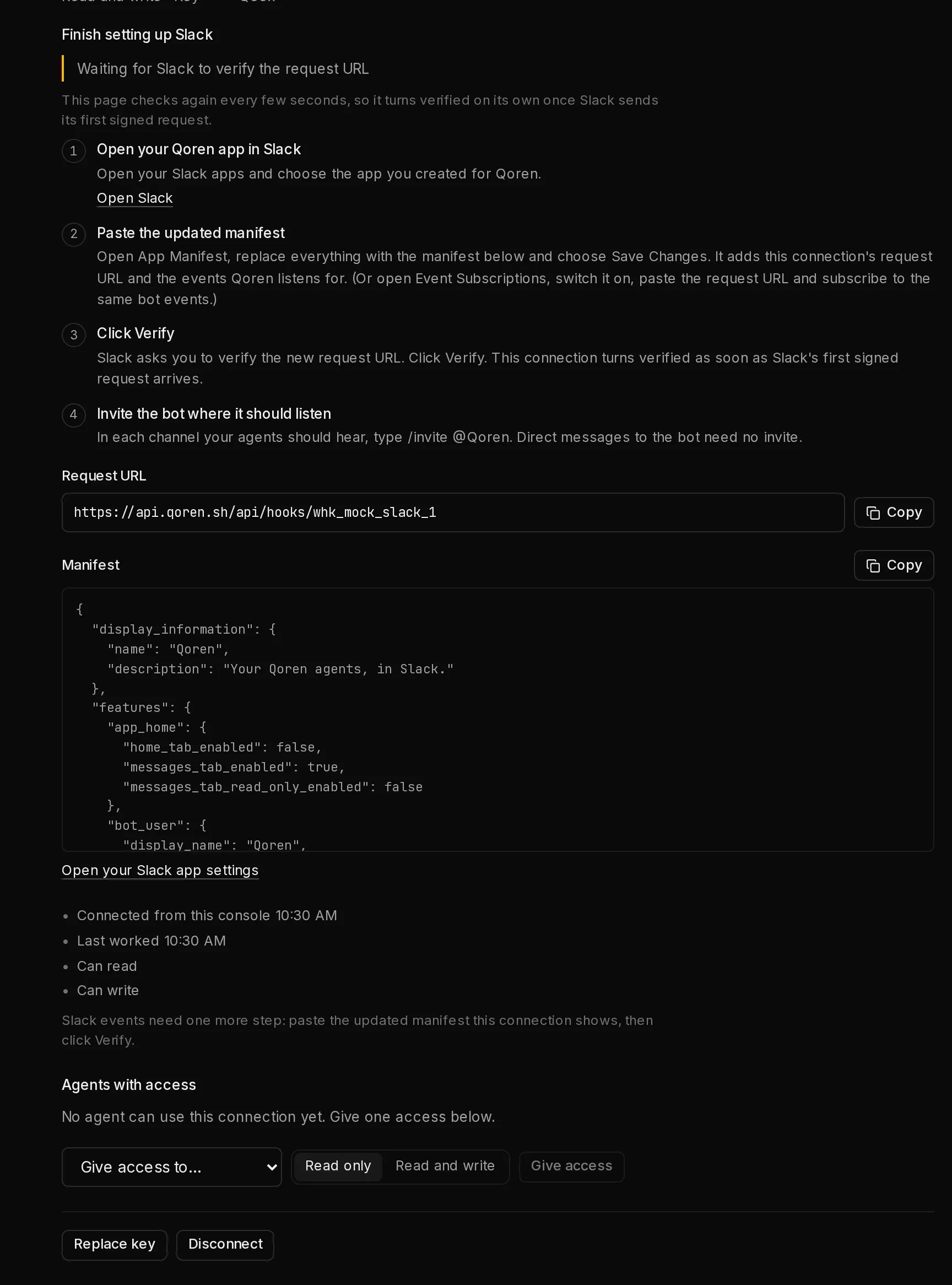
You do not need to come back and click anything in Qoren. The page checks again every few seconds while it waits, and the connection turns Connected as soon as Slack's first signed request arrives. The status line then reads Verified with the time, and later the time of the last event. The steps fold away behind Show setup, and Open your Slack app settings takes you back to the app.
The request URL is unique to this connection and does not work without your app's signing secret: Qoren checks the signature of Slack's verification request with it before answering, like every event after it. Keep the URL to yourself anyway.
What Qoren checks#
- That the token is a bot token. A token that does not start with
xoxb-is refused, and so is a rotatingxoxe.token. - That the signing secret looks like one. Anything else, such as a pasted token or URL, is refused. Slack has no way to test a signing secret, so Qoren proves it on Slack's first signed request, when you click Verify.
- That Slack accepts the token, and which workspace it belongs to. The workspace name becomes the connection's label.
- Which scopes the app has, when Slack reports them. If scopes are missing, the check names them and asks you to paste the updated manifest.
Give an agent access#
A new connection is used by no agent until you give one access. Open the connection under Connected, choose an agent (or all agents) in Give access to…, pick Read only or Read and write, and click Give access. You can add triggers while the setup is still unfinished; they start once Slack is verified. See give an agent access.
Events#
Create triggers from these on the agent's Triggers tab; see wake an agent from a connected tool.
| Event | What it means |
|---|---|
| Bot mentioned | Someone mentions the bot (@Qoren) in a channel it was invited to. |
| Direct message | Someone sends the bot a direct message. |
| Message in a public channel | Someone posts in a public channel the bot was invited to, mentions included. |
| Message in a private channel | Someone posts in a private channel the bot was invited to, mentions included. |
| Reaction added | Someone adds an emoji reaction to a message in a channel the bot is in. Add a condition on event.reaction to react to one emoji. |
What the agent receives. The event, the channel and its type, who wrote it, the text (shortened when long), the message and thread timestamps, the reaction when there is one, and the names of up to 10 attached files.
What never wakes an agent. Messages from bots, the app's own bot included, so an agent's reply never wakes it again. Edits, deletions, joins and other message changes are not events either; a reply sent to the channel from a thread and a shared file are.
Slack retries a delivery up to three times when it gets no quick answer. Each retry carries the same event id, so the agent runs once.
Tools agents can use#
| Tool | What it does | Changes records | Always asks |
|---|---|---|---|
| Read a thread | Read one thread the bot can see: its first message and replies, at most 50 | No | No |
| Post a message | Post in a channel or direct message the bot is in | Yes | No |
| Reply in a thread | Reply in a thread the bot is in | Yes | No |
| Post to a shared channel | Post in a channel shared with another organization (Slack Connect), optionally in a thread | Yes | Yes |
What the tools refuse. Post a message and Reply in a thread refuse a channel shared with another organization; for those there is Post to a shared channel, which always waits for your approval. No tool may page a whole channel or group: a message with @channel, @here, @everyone or a user group mention is refused and nothing is sent.
Posting to a shared channel reaches people outside your company, so it waits on the Approvals page every time. The other two follow the agent's autonomy and need a Read and write grant. See how Qoren keeps connected tools safe.
Limits and gotchas#
- One manual step. Until you paste the manifest and click Verify, no Slack event reaches Qoren.
- A new signing secret means verifying again. If you replace the key with a different signing secret, the connection goes back to Finish setup until Slack's next signed request arrives.
- The bot only hears where it is invited. Channel events need
/invite @Qorenin that channel. - Keep the app internal. It is made for your workspace only. Do not turn on public distribution for it.
Troubleshooting#
- "Paste the Bot User OAuth Token (it starts with xoxb-), not a user or app-level token." Copy the token from OAuth & Permissions, not an
xapp-orxoxp-token. - "This token rotates every 12 hours." Create a new app from Qoren's manifest, which keeps token rotation off, and paste its bot token.
- "That does not look like a Slack signing secret." Copy it from Basic Information, App Credentials.
- Still Waiting for Slack to verify the request URL. Check that you saved the updated manifest, not the first one, and clicked Verify in Slack. If verification fails in Slack, check that the signing secret in Qoren is this app's.
- A channel message never wakes the agent. Invite the bot to the channel, and check that the trigger listens for public or private channel messages as appropriate.
- The connection says Needs a new key. Slack stopped accepting the token, for example because the app was uninstalled. Reinstall it and click Replace key with the new token. See when a connected tool stops working.
Disconnect and delete the app#
- On the Integrations page, open the Slack connection under Connected.
- Click Disconnect, then Disconnect again in the Disconnect Slack? dialog (or Keep it).
Qoren deletes the stored token and signing secret, retires the connection's request URL, removes every agent's access and pauses the triggers that used the connection. Slack's own settings are yours: Qoren does not change the app.
Qoren cannot revoke the token, so remove the app in Slack too: open your apps (open them in Slack), choose the Qoren app and delete it under Basic Information, or reinstall it to get a new token.
Frequently asked questions#
Why is Slack set up by hand when the other tools are not?
A bot token cannot set the app's request URL, so the URL has to go into your app's manifest. Qoren writes that manifest for you; you paste it and click Verify once.
Is this the same bot as my agent's Slack chat channel?
No. The chat channel is a Slack app that one agent connects to itself, for people to chat with it. The integration is a Slack app Qoren holds, whose events can wake any agent you give access to. Use separate Slack apps for the two.
Can an agent post @channel?
No. Every post with @channel, @here, @everyone or a user group mention is refused before it reaches Slack.
Will my agent answer its own messages forever?
No. Messages from bots, including the app's own bot, are never events.