
Resize an environment
Make a Qoren environment bigger or smaller. Growing resizes it in place. Shrinking moves your agents to a new environment that keeps the name.
On this page
Resize an environment when it is full and you want more agents on it, when a template needs a bigger one, or when it is bigger than you need and you want to pay for less. An environment can go to any size your plan allows, in either direction.
Before you start#
- The environment must be Running or Stopped. While it is setting up, resizing or being removed, the Resize button is off and the card says "Available once the environment has finished what it is doing."
- The new size must be within your plan. See environment sizes and agent capacity.
Pick a new size#
- In the sidebar, click Environments and open the environment.
- Click the Settings tab.
- In the Size card, click Resize.
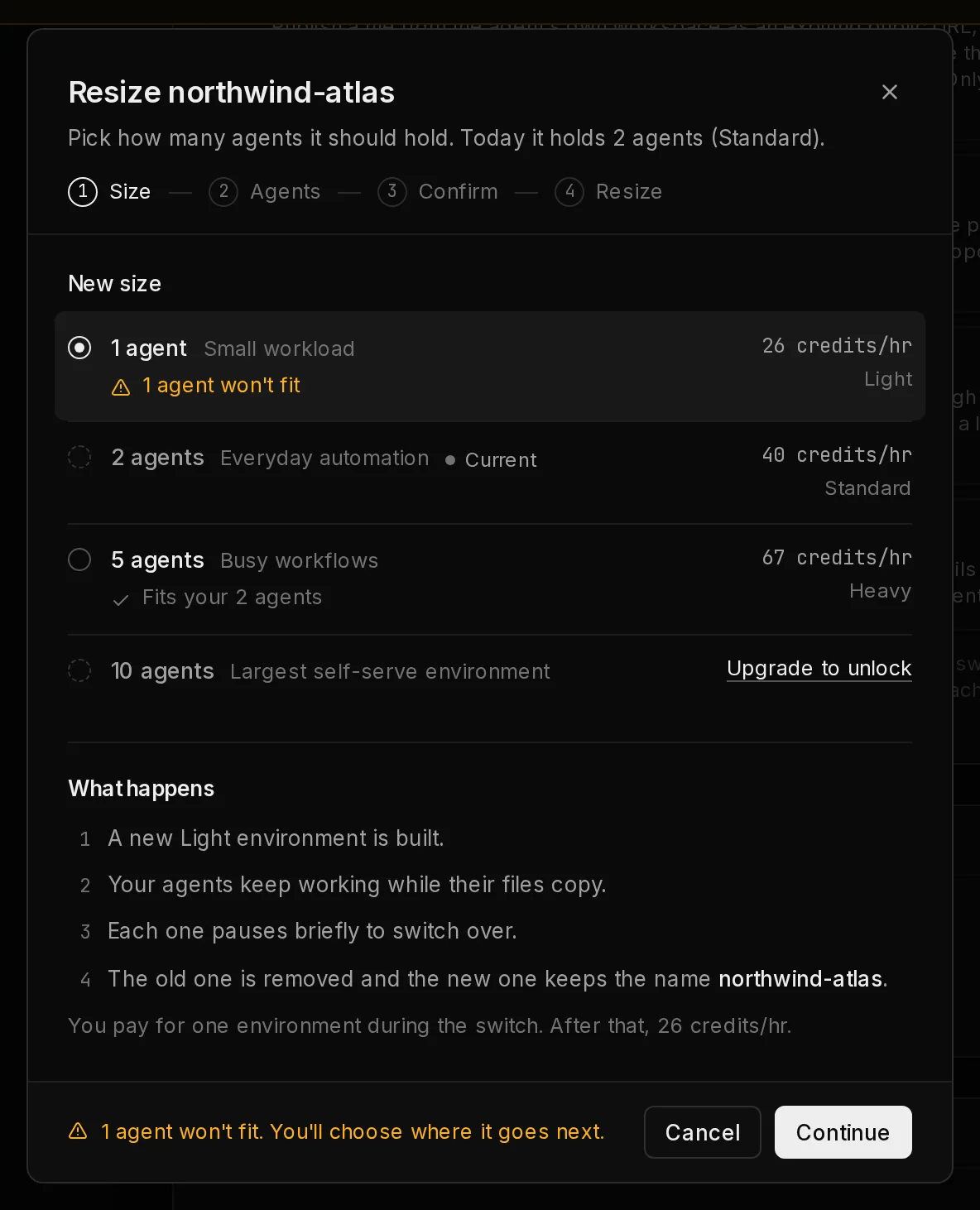
- Choose a size (1). Each size says whether your agents fit on it, your current size is marked Current, and a size your plan does not include shows Upgrade to unlock instead of its rate.
 12
12Under the sizes, What happens lists what the size you picked means. Growing is resized in place, usually in a few minutes, and your agents restart once. Shrinking builds a new environment, your agents keep working while their files copy, each pauses briefly to switch over, and the old one is removed while the new one keeps the name. If some agents will not fit, a note beside Continue says how many, and you choose what happens to them next. If something stops the resize, such as an environment that is already that size, the dialog says so instead.
- Click Continue (2).
Growing: resized in place#
A bigger size keeps the same environment and resizes it where it is. The resize runs in three steps, which you can follow in the dialog and later on the Logs tab:
- Pause the environment: it powers off, and its agents stop.
- Resize to the new size.
- Start the environment: it powers on and Qoren waits until it is reachable again.
Your agents take a short break, usually a few minutes, then carry on where they left off. If the resize fails, Qoren starts the environment again on its old size, so it is never left switched off.
Shrinking: a new environment takes over#
An environment's storage cannot shrink, so a smaller size works differently. Qoren builds a new environment of the smaller size, moves each agent onto it one at a time, removes the old environment and gives the new one the old name. You end up with one environment, with the same name, on the smaller size.
Each agent keeps running while its files are copied and pauses only for the final switch-over, the same as when you move an agent yourself. The smallest agents move first. During the switch the new environment shows on the Environments page marked Replacing with the old name, and the environment being shrunk reads Resizing.
What carries over#
Every agent comes across with everything it had:
- Its memory and chat history.
- Its settings, keys and secrets.
- The files in its workspace and the rest of its home folder, including packages it installed for itself, which are reinstalled on the new environment.
- Its scheduled tasks and its webhooks.
- Its mailbox, at the same address.
The environment keeps its name, and its settings such as collaboration between agents and platform access stay as they were.
When the smaller size cannot hold every agent#
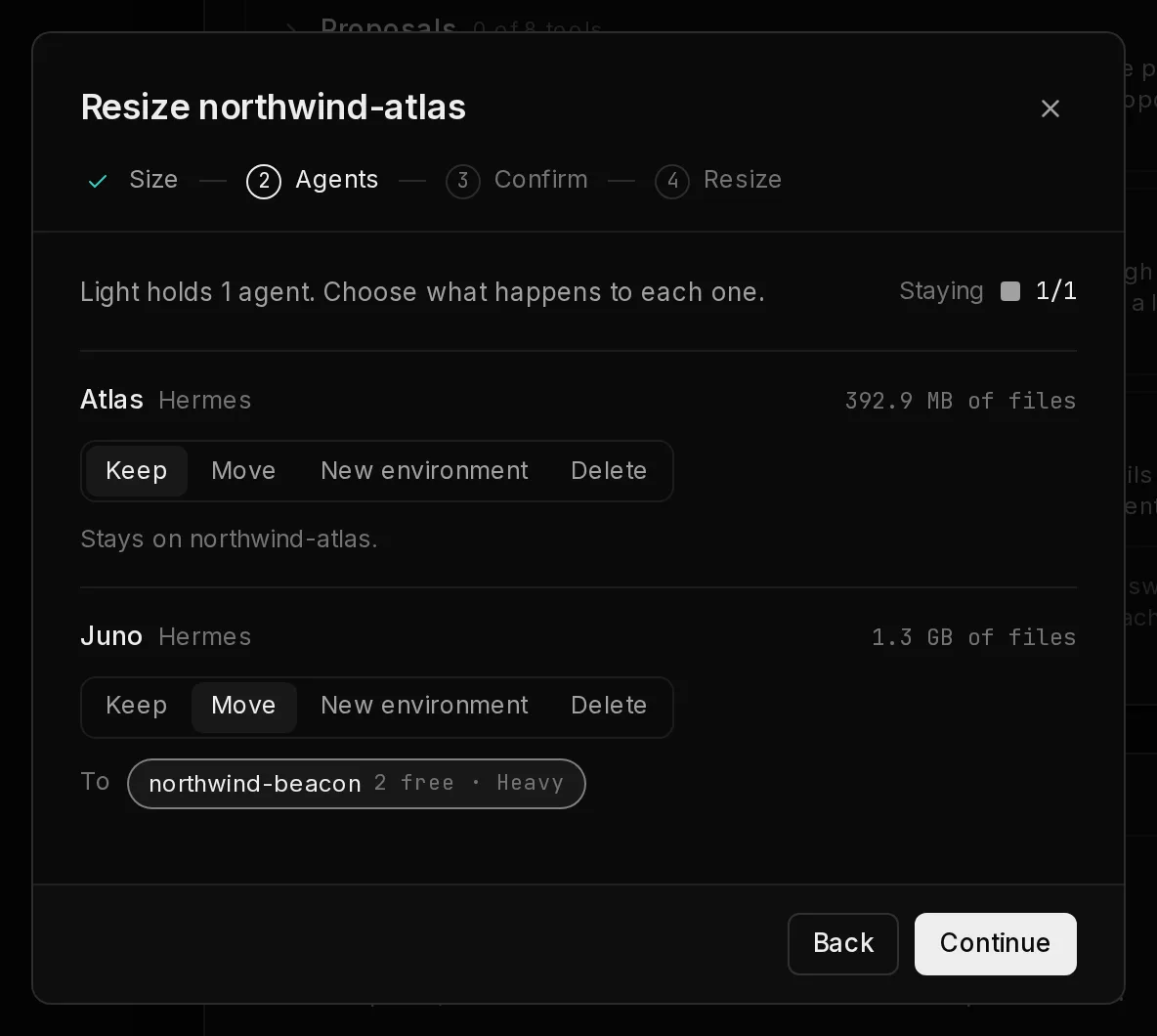
If more agents live on the environment than the smaller size holds, or a template needs a bigger size than the one you picked, the dialog adds an Agents step. When everything fits, it goes straight to the confirmation. The meter (1) shows how many agents are set to stay out of how many fit. Each agent shows how much it holds on disk, and for each one you choose (2):
- Keep: it stays on the resized environment.
- Move: it goes to one of your other environments with a free place. Pick which one under the choice; each shows how many places it has free.
- New environment: Qoren creates another environment for it. Pick its Name and Size below the list. Sizes too small for the agents you send there are marked too small.
- Delete: it is removed after a final backup, and you can bring it back from Deleted agents on the My agents page for 90 days, as described in remove or restore an agent.
 12
12Continue stays off until every agent has a place: no more agents stay than fit, every environment you move agents to has room for all of them, and the new environment has a valid name and a size big enough for the agents you send to it. Anything left to sort out is said next to the agent or field it is about.
A smaller size also has a smaller disk. If the agents going to an environment hold more files than it has room for, the resize is refused before anything is built, with a message saying how much room there is. Send some of those agents elsewhere, pick a larger size, or trim their files.
Confirm#
The last step shows the environment's size, agents and hourly rate now and after, where each agent ends up, the downtime and the billing, plus any warnings. If you chose to delete any agent, type the environment's name to confirm. A deleted agent's mailbox is kept, and stays on your account until you reassign or cancel it on the Email page. Click Resize to start.
Follow the progress#
The dialog shows each step as it runs. You can close it, switch tabs or leave the page; the resize keeps going. During a shrink, the environment's page shows a status line above the tabs with the step it is on, and Show progress opens every step. When it finishes, the dialog sums up where each agent went, with a link to the environment. Click Done.
If a shrink stops part way, for example because a step failed, every agent is safe: each one is either still on the old environment or already on its new one. The status line says what stopped it and offers two buttons:
- Resume picks up where it stopped.
- Cancel and move agents back asks you to confirm, then moves the agents that already moved back, removes the new environment and keeps the old size.
What it costs#
- Growing: from the next hour on, the environment draws the hourly rate of its new size. There is no separate resize charge.
- Shrinking: you are billed for one environment throughout. The new environment is not billed while the switch runs, and once the old one is gone it draws the smaller size's rate.
- A new environment for extra agents is a normal environment: it is billed from its first hour and counts toward your plan's environment limit.
The current rates are on environment sizes and agent capacity.
Frequently asked questions#
Will my agents lose anything during a resize?
No. When it grows, they pause while the environment is off and pick up where they left off. When it shrinks, each agent moves with its memory, files, settings, schedules and mailbox, as described above.
Why is a bigger size marked Upgrade to unlock?
Your plan caps the largest environment size. Compare plans on plans and the free trial.
Can I resize during the free trial?
You can make a trial environment smaller: it already runs on capped hardware, so only its size setting changes and nothing moves. Growing is refused until you pay, with a message that says so. End the trial early to lift the cap.
Can I shrink from the CLI?
Yes. qoren env resize takes the same choices for agents that do not fit. See the CLI reference.
The resize failed. What now?
A failed grow starts the environment again on its old size; open the Logs tab to read which step failed, then try again. A failed shrink shows Resume and Cancel and move agents back on the environment's page. If it keeps failing, report a bug.