
Let an event wake your agent
Wake an agent when something happens in another tool: pick an event from a connected tool, or point any webhook at Qoren. Rules, delivery and the log.
On this page
- Two ways to set up a trigger
- Wake an agent from a connected tool
- How events reach the agent
- What the agent receives
- Suggested triggers
- Triggers from a template
- Triggers an agent asks for
- Switch a URL trigger to connected
- When the connection breaks
- Create a trigger with a URL and secret
- Start from your template's triggers
- Copy the URL and the secret
- One webhook per source
- Run only when the payload says so
- How a delivery is checked
- What the agent reads
- Choose how much it may do on its own
- Test, pause, replace or delete a trigger
- Read the delivery log
- Repeats and retries
- From the terminal
- Frequently asked questions
A schedule wakes an agent at a time you picked. A trigger wakes it the moment something happens somewhere else: a meeting gets booked, a deal moves, a pull request opens, a payment fails. You say what the agent should do, and it handles each event as it arrives.
A trigger belongs to one agent, so the agent that handles your bookings can be a different agent from the one watching your code. Triggers work on every runtime, and they all live on the agent's Triggers tab.
Two ways to set up a trigger#
| From a connected tool | With a URL and a secret | |
|---|---|---|
| Works with | The tools on the Integrations page: Pipedrive, GitHub, Linear, Stripe, Resend, SendGrid, cal.com, Shopify and Slack | Any service that can send a webhook |
| What you do in the other service | Nothing. Qoren sets up the webhook itself | Paste a URL and a signing secret into its webhook settings, and tick the events there |
| What the agent gets | The record that changed, fetched with only the fields it needs | The event exactly as the service sent it |
| Delivery | Every event, a digest, or the latest state per record | Every event |
Use a connected tool whenever the tool is on the list: there is nothing to copy, Qoren keeps the webhook working, and the agent gets a cleaner record. Use a URL and a secret for everything else, or if Integrations is not on your account yet. Both kinds share the rules, the approval choice, the hourly limit and the delivery log described further down.
Wake an agent from a connected tool#
First connect the tool and give the agent access to it: see connect a tool and give an agent access. Then:
- Open the agent and click Triggers in the tabs under its name.
- In the From your connected tools section, which lists the connections the agent can use and their events, click Add a connected trigger.
- If the agent can use more than one tool, choose it under Which tool?.
- Under Which tool event?, pick the event (1). Each one says what it means, and a busy one says so.
- Read the line under the events (2): how often this event happened in that tool lately, for example "At least about 41 a day over the last 30 days. Capped at 60 an hour." It reads "Unknown" when the tool keeps no history Qoren can read.
- Under How events reach the agent (3), choose how events arrive (see below). For a busy event Qoren picks A digest for you; you can change it.
- In What should the agent do when it happens?, write the rules in plain language.
- Optionally, under Only when the record says so, click Add a condition to skip events that do not matter, such as deals in another pipeline (see run only when the payload says so).
- Give it a Name, or keep the one suggested.
- Tick Send a sample to send a made-up event through it once it is set up. That is one agent turn.
- Click Add trigger (4).
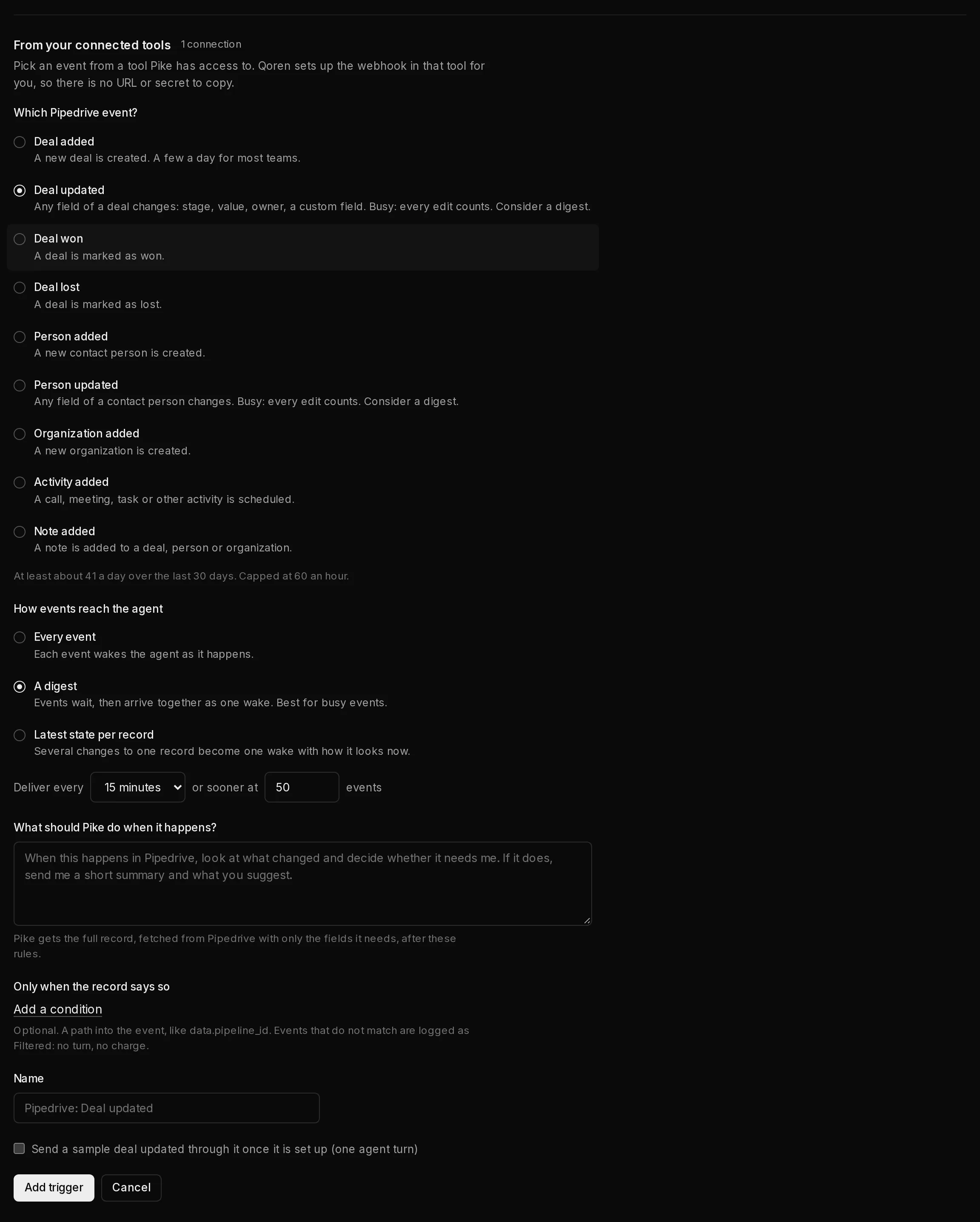 1234
1234Qoren now sets up the webhook in the tool, or adds the event to one it already set up there, and the trigger is live. If the tool has no room for another webhook, for example because Stripe already has 16 endpoints, nothing is created and the form says so; Qoren never removes one of your webhooks to make room. Only the owner of your Qoren organization adds, changes or deletes connected triggers.
A connected trigger shows Connected and its event in the list. Its event is fixed, because the webhook in the tool is set up for it: to wake on another event, add another trigger. It has no URL or secret to replace. Deleting it also removes the webhook from the tool when no other trigger uses it.
How events reach the agent#
| Choice | What happens |
|---|---|
| Every event | Each event wakes the agent as it happens. |
| A digest | Events wait, then arrive together as one wake. Deliver every 5 minutes, 15 minutes, 1 hour, 4 hours or 24 hours, or sooner at a number of events (50 to start). Best for busy events. |
| Latest state per record | Several changes to one record, such as a deal edited five times, become one wake with how it looks now. Wait 1, 5, 15 or 60 minutes after the first change. |
A digest or a latest-state wake is one agent turn, however many events it holds, so it is also the cheaper choice for a busy event. While events wait, they show in the delivery log as Batched. You can change the choice later in the opened trigger.
What the agent receives#
The agent gets your rules, then the record the event is about. Where the tool sends only a little, Qoren fetches the full record with the connection's key first, and in both cases passes on only the fields an agent needs. For a change, the agent also sees what the record looked like before, where the tool says. Like every event, it is labelled as data from outside, so the agent treats what is in it as information, never as instructions.
Suggested triggers#
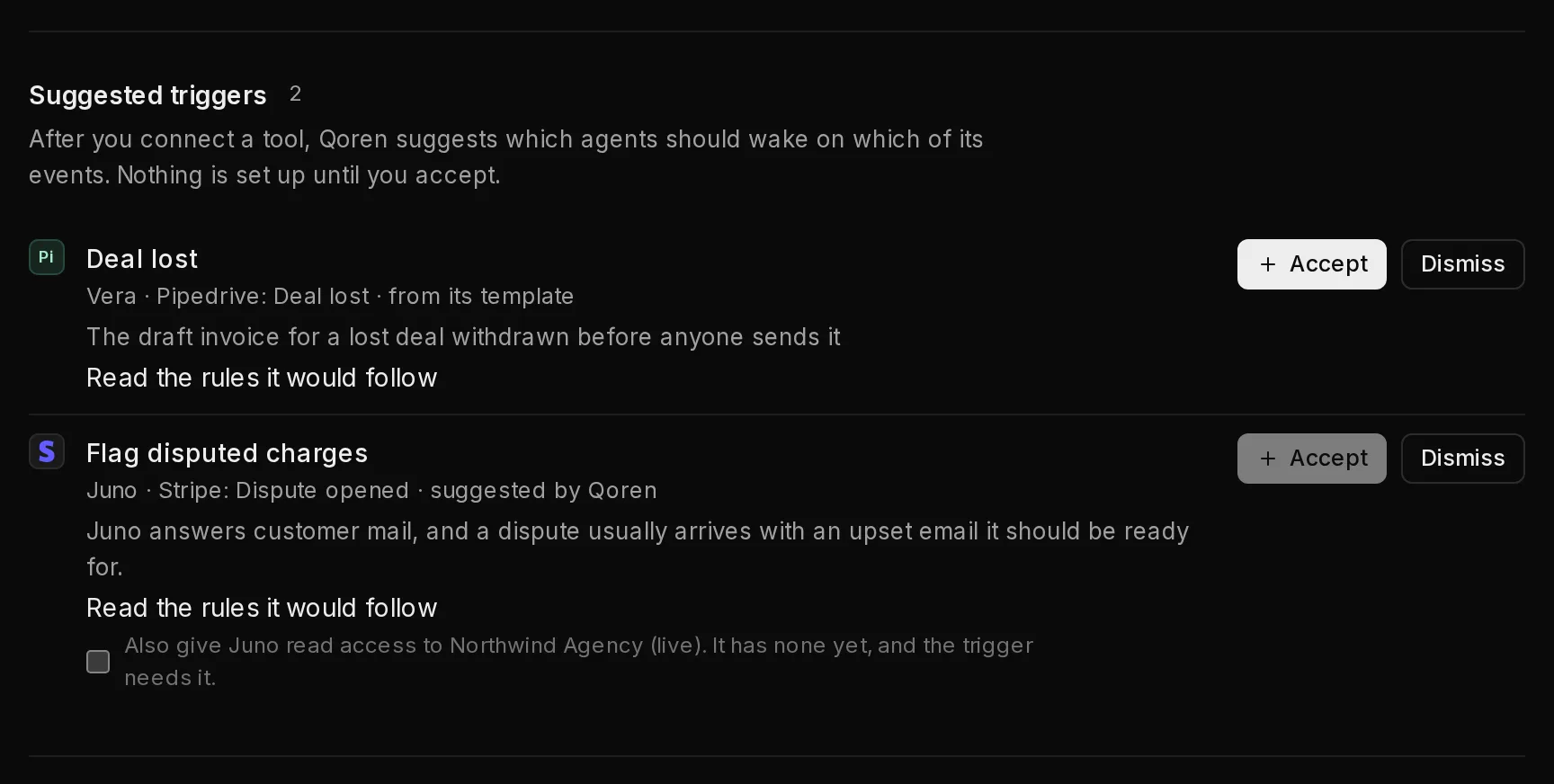
After you connect a tool, Qoren suggests which agents should wake on which of its events: first from the triggers of the templates your agents came from, then, for agents without one, from what each agent does. Suggestions show at the top of the Integrations page and on the agent's Triggers tab.
 12
12Each card names the agent, the tool and the event, and whether it comes from its template or is suggested by Qoren. Read the rules it would follow shows the rules and how much it may do on its own. If the agent has no access to the tool yet, tick Also give it read access first. Click Accept (1) to set it up, or Dismiss (2); a dismissed suggestion does not come back. Nothing is set up until you accept.
Triggers from a template#
A template can come with connected triggers, such as a CRM assistant that wakes when a deal changes stage. When you deploy it, the deploy page offers to give the new agent access to the tool, or to connect it. On the agent's Triggers tab, the template's connected triggers it does not have yet are listed under Connected triggers from the template, with Set them up.
A template trigger whose tool is not connected yet, or that the agent cannot use yet, shows Waiting for a connection. It goes live by itself, with nothing to paste, once the tool is connected and the agent has access; Connect opens the Integrations page for it.
Triggers an agent asks for#
An agent with access to a connected tool can ask to be woken by one of its events, for example after you tell it in chat "keep an eye on new deals". It never gets the trigger straight away:
- The trigger shows Waiting for approval, with the line that the agent asked for it itself, and Approve and Deny. The same request is on the Approvals page as Let the agent add a trigger.
- Approving sets up the webhook in the tool and the trigger starts. Denying deletes the request.
- This holds whatever the agent's autonomy, even Autonomous.
- The agent must say how many events an hour it may handle, and it can have at most 5 triggers of its own. It can remove its own triggers, never yours.

Switch a URL trigger to connected#
A cal.com, GitHub or Stripe trigger made with a URL and a secret can move to a connected one once that tool is connected and the agent has access. Open the trigger and click Switch to connected (choose the connection first if there are several). Qoren creates one connected trigger for each of its events, with the same name, rules, conditions, approval choice and limit, sets up the webhook and sends a test through each. Only if the tests go through does it remove the old trigger and its URL; otherwise nothing changes. Then delete the old webhook in the tool yourself. Every event the old trigger lists must be one Qoren can set up for that tool.
When the connection breaks#
If the tool stops accepting the key, or a webhook stops working and Qoren cannot put it back, the connection's triggers pause and show Waiting for its connection, and a banner on the Triggers tab says which tool needs a new key. They come back by themselves once it is fixed. See when a connected tool stops working.
Create a trigger with a URL and secret#
For any service that is not a connected tool, the trigger gets its own URL and signing secret, which you paste into the other service. An agent needs only one webhook per source: its GitHub triggers all share one URL and one secret, and so do its Stripe triggers and its cal.com triggers (see one webhook per source).
Triggers have their own tab on the agent's page.
- Open the agent and click Triggers (1) in the tabs under its name.
- Click Add a trigger (2). Triggers you already have are listed underneath (3), each with its source, its events and whether it is Active or Paused.
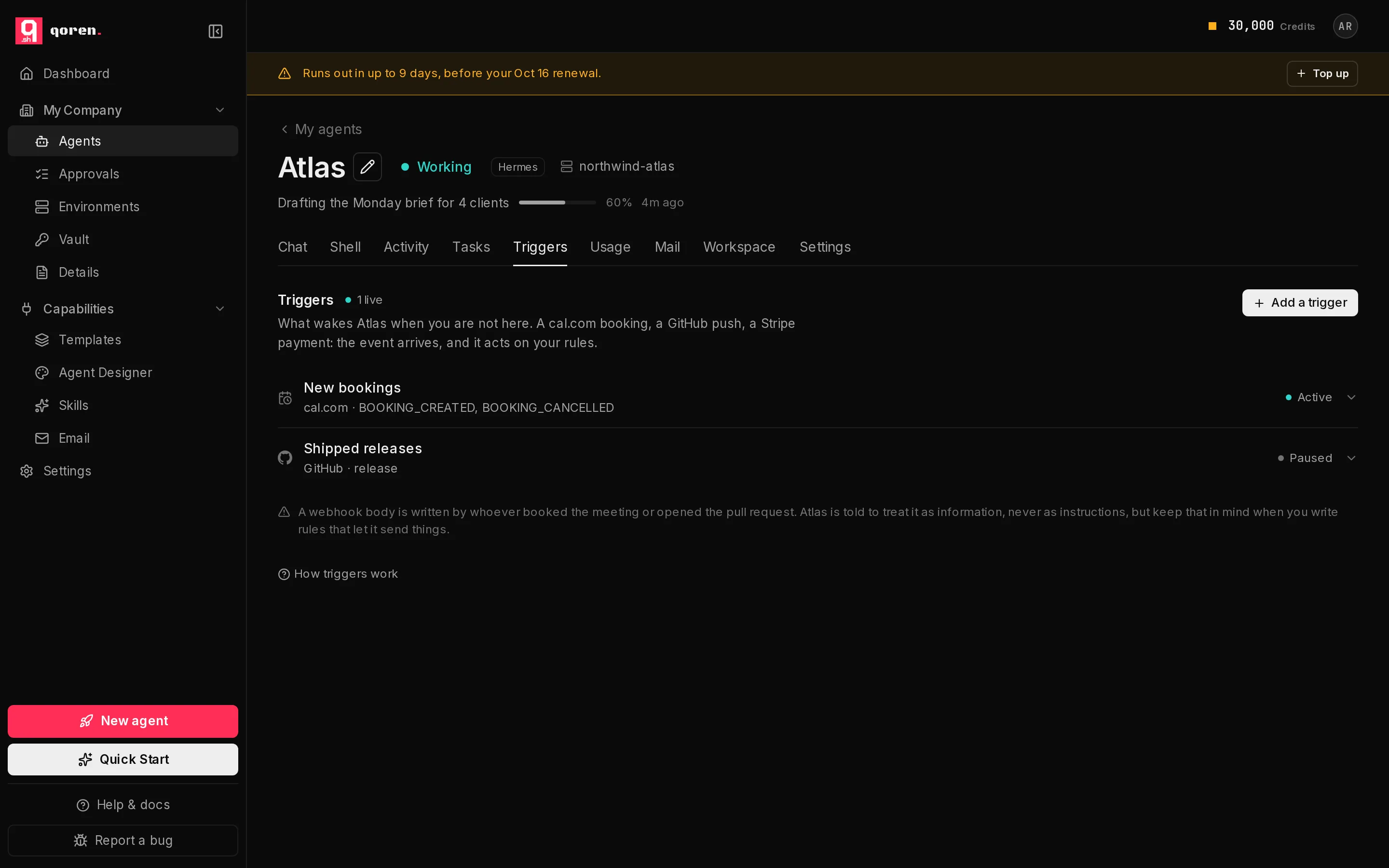 123
123- In What is this for? (1), give it a name you will recognize in the log, such as "New bookings".
- Under Where does it come from? (2), pick the source: cal.com, GitHub, Stripe, Any signed source or Any source (no signature).
- Under Which events? (3), click the events you want to act on. You can also type an event name that is not listed and press Enter.
- In What should … do about them? (4), which names your agent, write the rules in plain language: what to check, what to do, what to leave for you.
- Leave Already have a signing secret? (5) empty and Qoren makes one. Fill it in only when the other service makes its own secret, as Stripe does.
- Click Create trigger (6).
If the agent already has a trigger for the source you picked, the form says so under Where does it come from?: the new trigger uses that webhook, and there is no secret to enter. See one webhook per source.
 123456
Start from your template's triggers#
If the agent was deployed from a template that comes with triggers, the Triggers tab lists the ones it does not have yet under Suggested by the … template, each with what it does and where its events come from. Click Set up and the New trigger form opens already filled in: the name, the source, the events and the rules, plus how much it may do on its own. Check it, change anything you like, and click Create trigger as usual. A suggestion disappears once the agent has a trigger with that name.
A template often suggests several triggers from one source, such as four GitHub triggers for pull requests, issues, pushes and Dependabot alerts. You connect that source once. The first one you set up gives you a URL and a secret to paste; every later one from the same source says "uses the existing … webhook" next to it, joins that webhook, and only asks you to tick its events in the other service.
Some template triggers take over a check the agent also runs on a schedule, such as a daily sweep for failed payments. After you create one of those and click I have copied both, the tab asks whether to slow that check down, for example to once a day, so it only catches anything the trigger missed. The schedule changes only if you click to accept; Keep it as it is leaves it alone, and you can change it back on the Tasks tab.
A suggestion whose events are emails has no URL to paste. It works once the agent has its own mailbox: connect one on the agent's Mail tab, or add one on the Email page first, and mail to that address wakes the agent with the template's rules.
Copy the URL and the secret#
Right after you create the trigger, a section titled Paste these into your webhook settings, marked Shown once, shows the Webhook URL (1) and the Signing secret (2), each with a Copy button.
 123
123- Copy both, and paste them into the other service's webhook settings. The source guides below say exactly where.
- Click I have copied both (3) when you are done. The section stays until you do.
One webhook per source#
Triggers on the same agent and the same source share one webhook: one URL and one secret. The first GitHub trigger you create gets its own pair; the second, third and fourth GitHub triggers join it. A delivery to that URL is checked once, then goes to every trigger whose events include it. Each of those triggers still runs on its own: its own rules, its own Act or Propose only, its own hourly limit and its own delivery log.
So for an agent with triggers for pull requests, issues and Dependabot alerts, GitHub needs one webhook that sends those three events, not three webhooks.
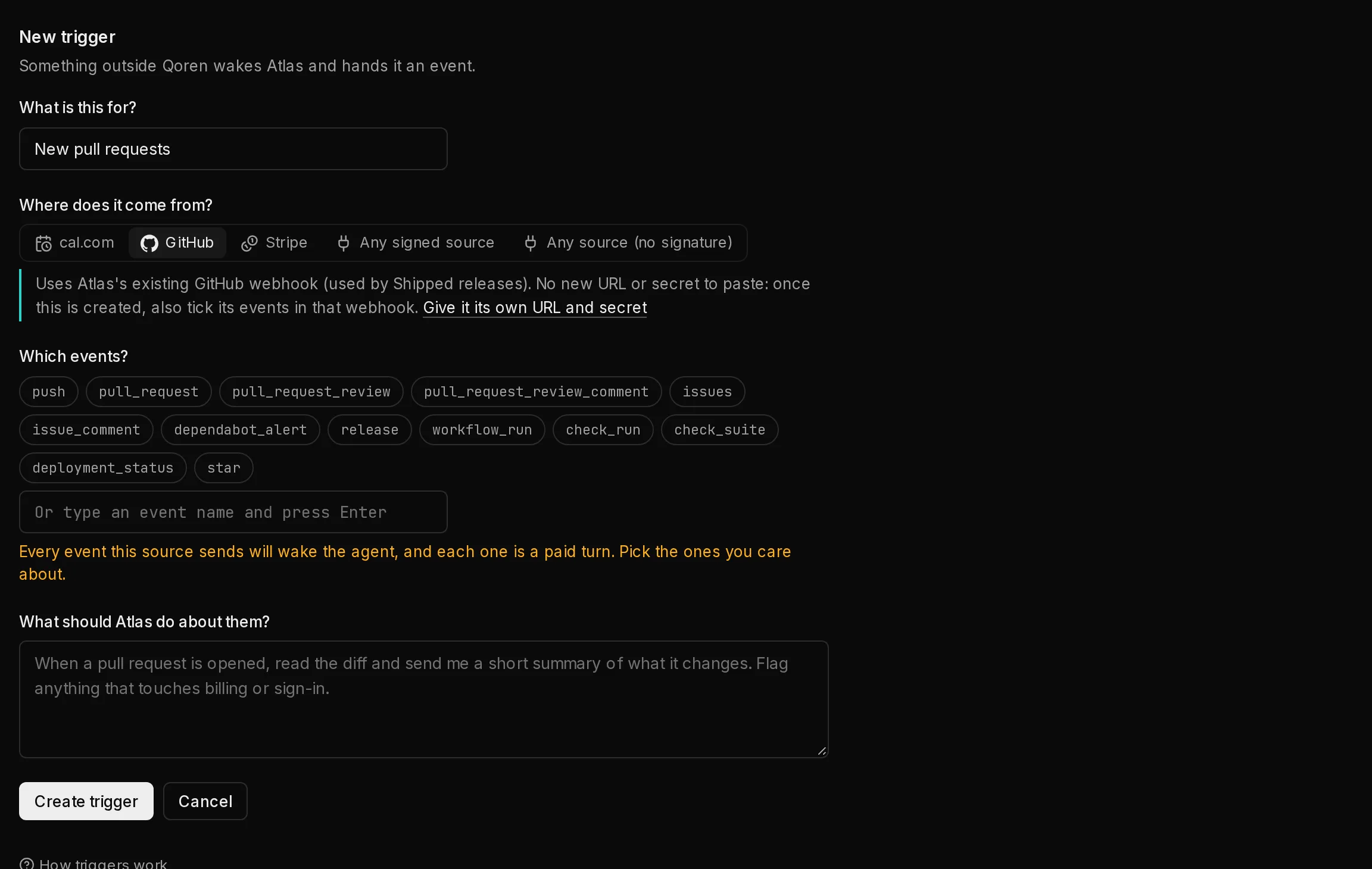
When a trigger joins. The New trigger form says so as soon as you pick the source (1): "Uses … existing GitHub webhook", naming the triggers already on it. There is no secret to enter.
 12
12After Create trigger, a section marked Nothing new to paste shows the existing Webhook URL, so you can find that webhook in the other service, and the events it must send for every trigger on it, in that service's own words (for GitHub: Pull requests, Issues, Dependabot alerts). Tick any that are missing there and click Done.
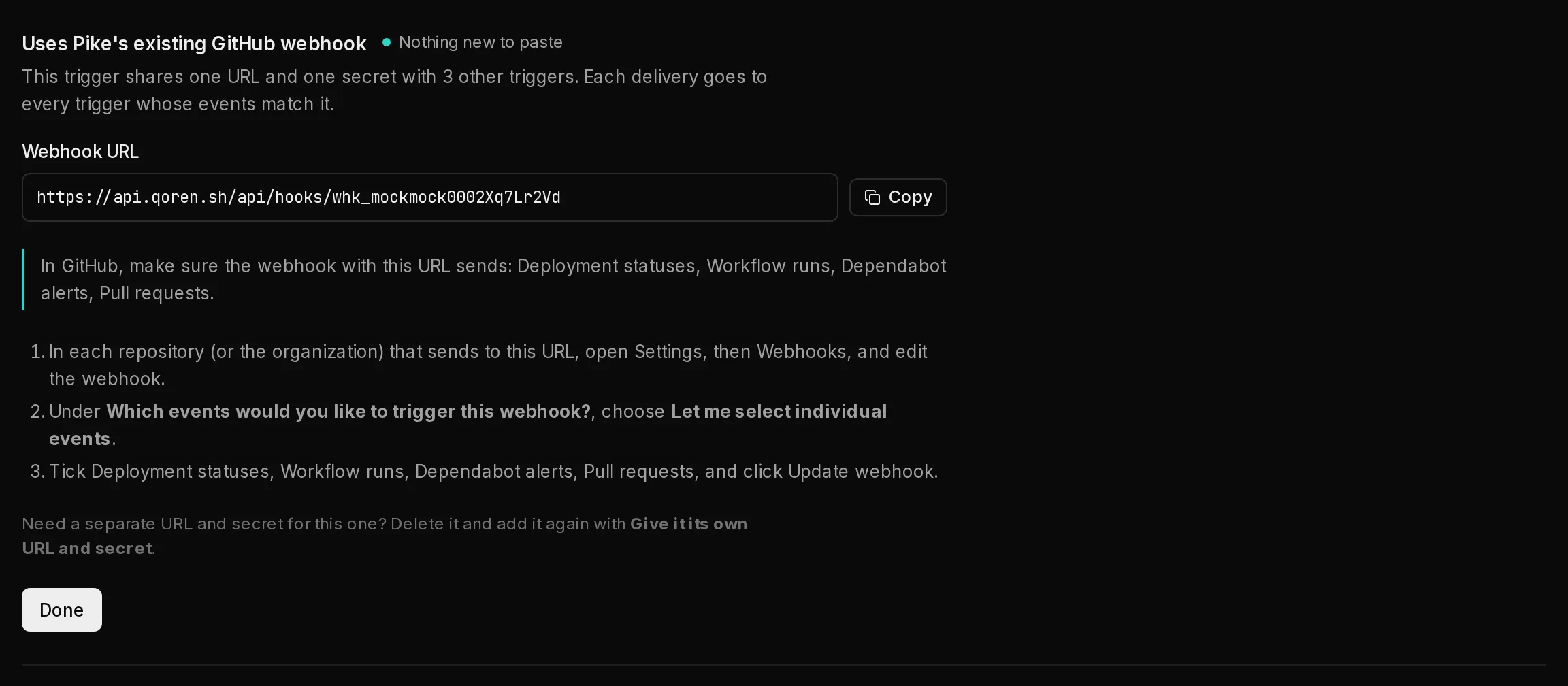 123
123On the Triggers tab a shared webhook is shown once, as One GitHub webhook for 3 triggers (1), with the events GitHub must send (2) and the triggers behind it underneath (3).
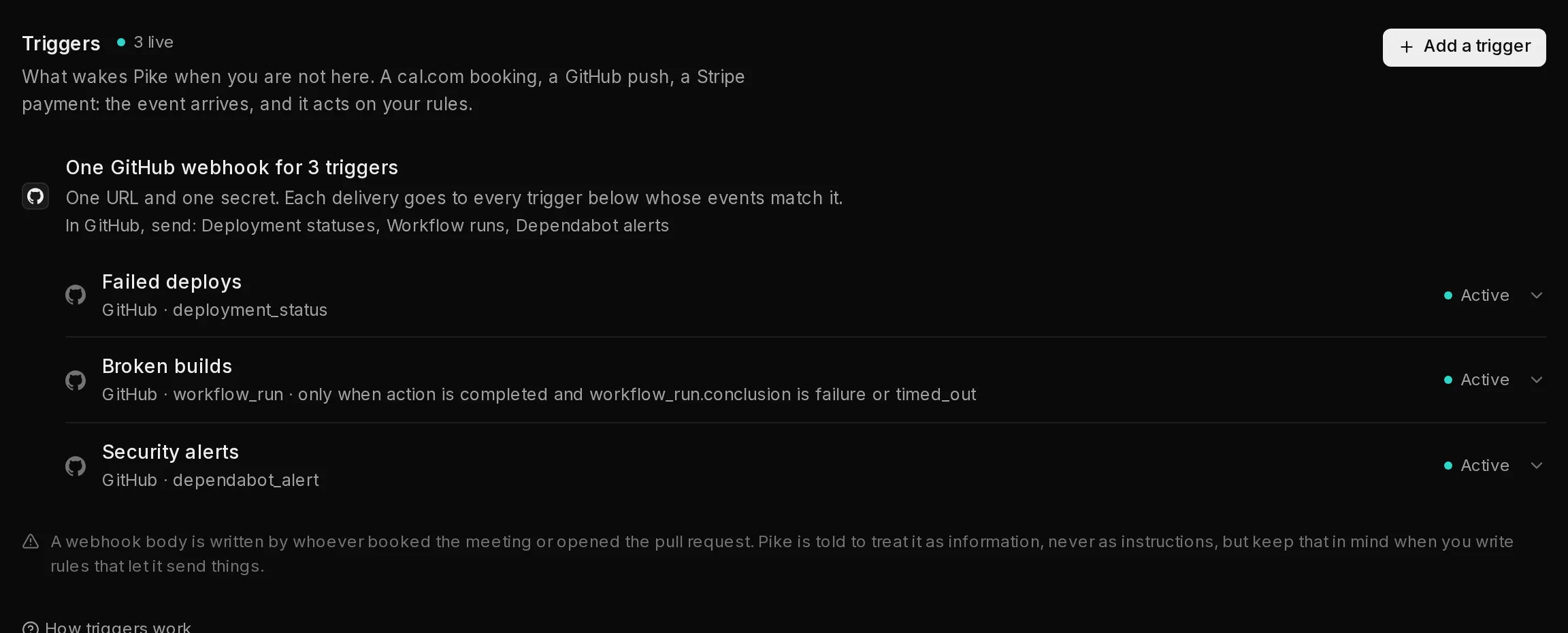 123
123Want a separate URL anyway? Click Give it its own URL and secret (2) in the form before you create the trigger, for example when the events come from a different GitHub organization or a second Stripe account. A signing secret you enter that is not the existing webhook's own also gets a URL of its own. From the CLI, pass --own-endpoint.
An event that reaches the shared URL but that none of its triggers listens for is recorded once, as Ignored, on the trigger that holds the URL.
Triggers you created before webhooks could be shared keep their own URL and secret, and nothing about them changes. A new trigger for that source joins the oldest of them.
Sharing works for cal.com, GitHub and Stripe, which always name their event. A trigger from Any signed source or Any source (no signature) shares only with triggers that read the event name from the same place and check the same signature header the same way, because without an event name every delivery would wake every trigger. The agent's own mailbox trigger (see agent email) is never shared.
Run only when the payload says so#
Some events are noisy. With one GitHub webhook for the agent, every comment and every CI run reaches it, and most of them are not worth an agent turn. A trigger can carry conditions on the event's body, checked the moment it arrives and before the agent is woken. A delivery that fails one is recorded as Filtered: no turn, no charge, and it does not count toward the trigger's hourly limit.
Each condition names a field by its dotted path in the body, such as action or check_suite.conclusion, and one test:
| Test | Holds when the field |
|---|---|
| equals | is this value |
| in | is one of these values |
| notIn | is none of these values (a missing field passes) |
| contains | contains this text |
| exists | is present (or, set to false, absent) |
Values compare as text and ignore case. A field that is missing, null, or a whole object has no value, so equals, in and contains fail on it. A trigger's conditions must all hold. For example, a CI trigger that runs only on a failed check suite has action equals completed and check_suite.conclusion in failure, timed_out; a comment trigger that ignores bots has sender.type notIn Bot.
Template triggers can come with conditions, and Set up carries them over; the form says "From the template: runs only when …". An opened trigger shows its conditions under Only when the payload says so, and its summary line ends with them. Set or change them from the CLI with --when on create, or qoren webhook conditions on an existing trigger. Send a test event and Run again skip the conditions, so you can always see the agent run.
How a delivery is checked#
Qoren checks every delivery against the signing secret before anything runs, using the method that sender uses. A body that was changed on the way, or signed with a different secret, is refused and never reaches the agent.
| Source | Signature header | How it is checked |
|---|---|---|
| cal.com | x-cal-signature-256 | HMAC-SHA256 of the body |
| GitHub | x-hub-signature-256 | HMAC-SHA256 of the body, prefixed sha256= |
| Stripe | stripe-signature | A signed timestamp plus the body; anything older than five minutes is refused |
| Any signed source | the header you name | HMAC-SHA256 of the body, in hex |
| Any source (no signature) | none | Not checked: the URL is the only credential |
For Any signed source, the form asks Which header carries the signature?. If that service sends the signature in base64, or with a prefix such as sha256=, or names its event somewhere other than the top of the body, set that when you create the trigger from the Qoren CLI with --encoding, --prefix and --event-path.
Any source (no signature) is offered for services that cannot sign at all. When you pick it, the form says "No signature to check": anyone who has the URL can wake your agent, so keep it private.
What the agent reads#
Each delivery becomes one agent turn, and nobody is watching it. The agent is told, in this order:
- Which trigger fired, and which event from which source.
- Your rules for this trigger. With no rules, it is told to use its own judgement and standing instructions, and to keep whatever it does small and reversible.
- The event itself, as the service sent it, clearly labelled as data from outside. A webhook body is written by whoever booked the meeting or opened the pull request, so the agent is told to treat anything in it as information to reason about, never as instructions to follow. Very long bodies are shortened.
- To finish with a few lines saying what it did, or why it did nothing (on a Propose only turn, what it proposes). That reply is what you see in the delivery log.
Choose how much it may do on its own#
Open a trigger by clicking it. Its settings open on the left and its delivery log on the right. Its rules sit under What should the agent do when this fires? (1). Under How much it may do on its own:
- Act: "Handles it like any other turn. Your approval settings still apply."
- Propose only (2): "Writes down what it would do and waits for you to approve." The agent may not use its tools during that turn. This suits a trigger whose events come from people you do not know.
If the agent's own autonomy says to ask first on Triggers and email, every trigger on it runs as Propose only, whichever you pick here. An event from outside never gets to skip the approval you asked for.
What a Propose only trigger writes down lands on the Approvals page in the sidebar, labelled with the trigger's name. Approve it and the agent carries on and does it; deny it and nothing happens. A proposal nobody decides expires after 24 hours. See approve what your agents ask to do.
Change the rules, the events or this choice, then click Save.
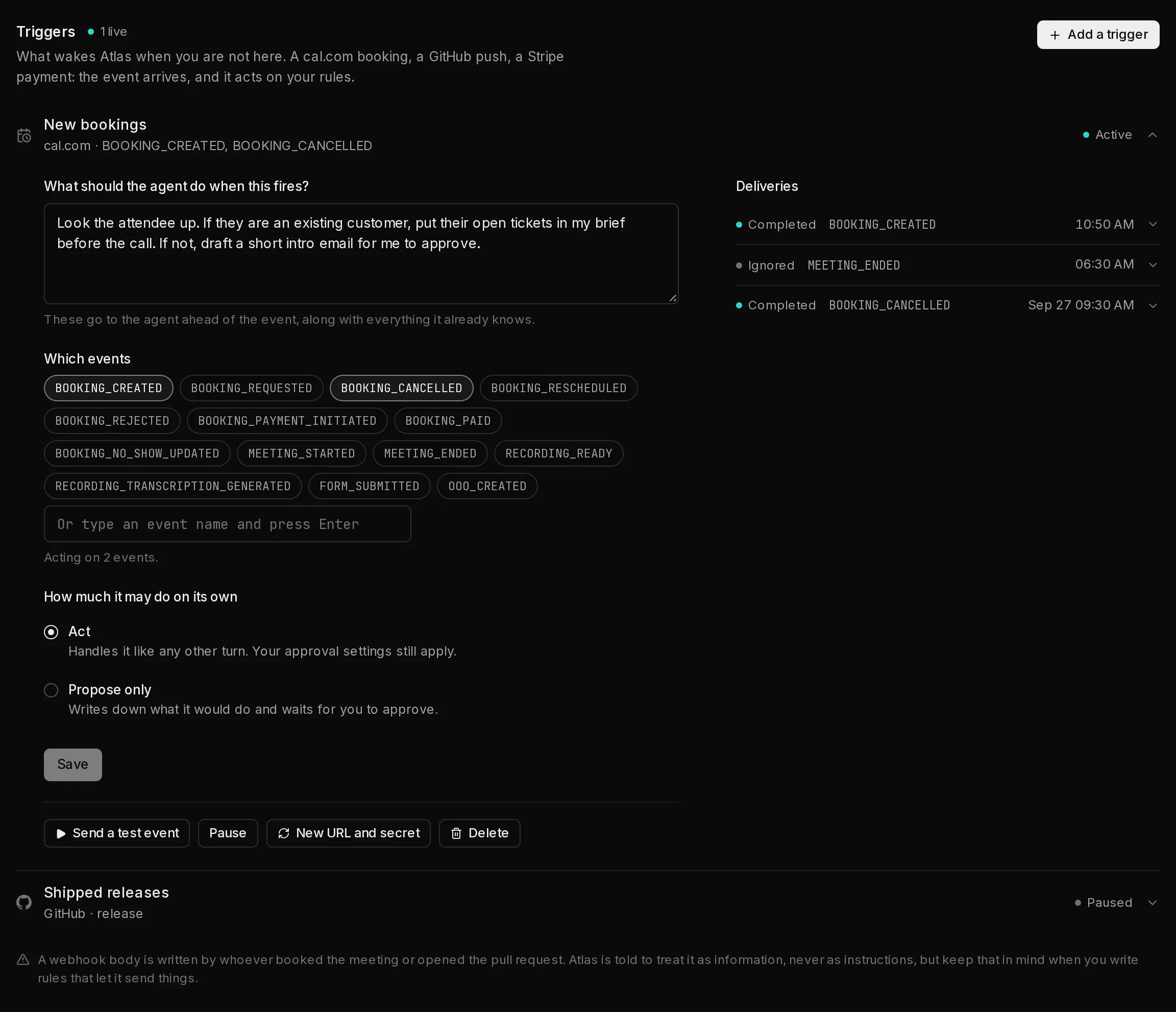 1234567
Test, pause, replace or delete a trigger#
The row of buttons in an opened trigger:
- Send a test event (3) sends a made-up sample through the real path, skipping only the signature check. It uses the first event the trigger listens for, and the sample says it is a test. It is a real agent turn, so it uses credits.
- Pause (4) stops the trigger without changing its URL. While paused, deliveries are accepted and dropped, and nothing is added to the log. Resume turns it back on.
- New URL and secret (5) issues a fresh pair and shows it once in the same section as before. The old URL and secret stop working straight away, so paste the new pair into the other service. On a shared webhook this replaces the pair for every trigger on it, and the section says how many.
- Delete (6) asks Delete for good? Click again to delete the trigger and its delivery log. Deleting one trigger of a shared webhook leaves the URL and secret working for the others; if it was the trigger that held the URL, the next one takes it over.
On a connected trigger, Send a test event sends a sample of its event, fetched and trimmed the way a real one is, and there is no New URL and secret: Qoren manages its webhook.
Read the delivery log#
Deliveries (7), beside the trigger's settings, lists everything that reached this trigger, newest first. Click a delivery to open it: you see what the status means, the agent's summary, any error, and Run again (2), which sends that delivery's stored body through the agent once more.
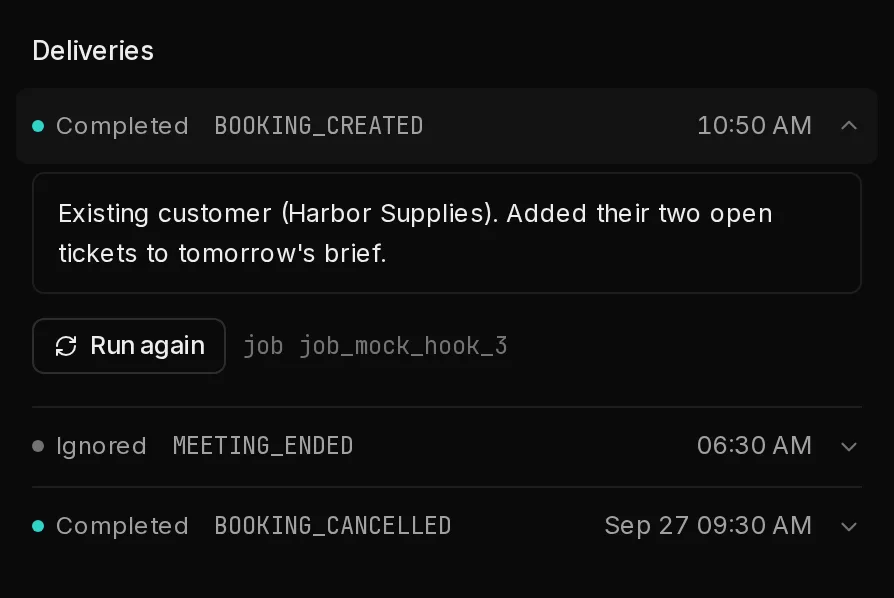 123
123| Status | What happened |
|---|---|
| Completed | The agent ran and replied. Its summary is shown. |
| Queued, Running | Accepted; the agent's turn is starting or under way. |
| Needs review | The agent proposed something and is waiting for your decision on the Approvals page. |
| Failed | The agent ran and something went wrong, or its environment could not be reached. |
| Ignored | Arrived, but this event is not one this trigger listens for. No turn, no charge. |
| Filtered | Arrived for an event this trigger listens for, but the body did not meet its conditions. No turn, no charge. |
| Skipped | Not run: the account is out of credits, or paused by its budget. |
| Throttled | Not run: over this trigger's hourly limit. |
| Batched | Held for a connected trigger's digest or latest-state window. It reaches the agent with the others in one run. |
A trigger runs the agent at most 60 times in a rolling hour unless you set another limit (from 1 to 1,000) with --max-per-hour in the CLI. Only deliveries that reached the agent count toward it, so ignored and filtered ones never use it up. Past the limit, Qoren tells the sender to try again later, and well behaved services do.
A delivery that fails its signature check, or arrives while the trigger is paused, does not appear in the log at all. If the other service says it sent something and the log is empty, check the URL, the secret and whether the trigger is paused.
Repeats and retries#
Services retry a webhook when they do not get an answer quickly, so Qoren answers at once and runs the agent afterwards. A retry of an event it already handled is recognised and gets the first result back, so the agent does not act twice on one booking.
From the terminal#
Everything on this screen is also a CLI command, so you can create and audit triggers from a script.
qoren webhook sources
qoren webhook create agt_abc --name "New bookings" --source cal \
  --event BOOKING_CREATED --event BOOKING_CANCELLED \
  --rules "Brief me on the attendee before the call."
qoren webhook conditions whk_ci action=completed "check_suite.conclusion=failure|timed_out"
qoren webhook deliveries whk_def
qoren webhook delivery whk_def dlv_123
A second create for the same agent and source prints the events to tick in the existing webhook instead of a new URL and secret; add --own-endpoint for a separate pair. qoren webhook also has ls, get, rules, events, pause, resume, rotate, test, replay and rm. See the CLI reference.
Set up a specific source:
Frequently asked questions#
Can I see the webhook URL again later?
The secret, no: it is shown once, when you create the trigger or replace it. The URL is shown again when you add another trigger that joins the same webhook. If you lose either, click New URL and secret and paste the new pair into the sending service.
Do I need a separate webhook for every trigger?
No. Triggers on one agent with the same source share one webhook, so the sending service needs one webhook that sends every event those triggers listen for. Each trigger still has its own rules, limit and delivery log.
Does every webhook cost a turn?
Only the ones that reach the agent. A delivery for an event the trigger does not listen for is recorded as ignored, one that fails the trigger's conditions as filtered, and both are dropped before any model runs, as are deliveries while you are out of credits or over the hourly limit.
Where do I approve what a Propose only trigger wants to do?
On the Approvals page in the sidebar, and on the agent's own page. The request shows the trigger's name, what the agent wants to do and how long is left before it expires.
What happens if the same event arrives twice?
It is handled once. Qoren recognises the repeat and returns the first result instead of running the agent again.
Can someone who guesses the URL wake my agent?
Not for a source that signs its webhooks: a delivery without a valid signature is refused before the agent is involved. With Any source (no signature), the URL is the only credential, which is why the form warns you when you pick it.
Should I use a connected tool or a URL?
A connected tool whenever the tool is on the Integrations page: there is nothing to paste, Qoren keeps the webhook working, and you can choose a digest for busy events. Use a URL and a secret for any other service.
Can an agent add a trigger for itself?
It can ask for one on a connected tool it has access to. The trigger waits for the account owner to approve it, whatever the agent's autonomy, and an agent can have at most 5 of its own.
What if the service I use is not listed?
Choose Any signed source and name the header its signature arrives in. If it cannot sign at all, choose Any source (no signature) and keep the URL private.