
Tell your agents about your business
Your business name, website, business model and what you do feed every new agent's setup. Fill them in once, in the welcome dialog or on Company details.
On this page
Every agent you hire starts by learning about your business. Rather than have each one ask you the same questions, Qoren keeps your business details in one place and hands them to every new agent. You fill them in once.
What your agents learn from it#
When you create an agent, a short setup interview runs in its chat while it is being set up. Your business details go into that interview as facts it already knows, so the setup assistant does not ask who you are or what your business does. Your name and your timezone go in the same way. When the agent comes online, it is handed your answers together with these facts, and a copy is saved in its workspace as SETUP-INTERVIEW.md.
The hand-over happens when you answer at least one setup question. If you skip the interview without answering anything, tell the agent about your business in your first chat instead.
Quick Start uses the same details to propose a team that fits your business.
The details you can fill in:
- Business name: what your business is called.
- Website: optional. Add it and Qoren can write the description for you.
- Business model: optional. How you make money, such as "Appointments and services".
- What your business does: one or two sentences on what you sell, and who for.
Fill them in when you first sign in#
The first time you sign in, before you have any agents, a Welcome to Qoren dialog asks for these details in three short steps:
- You: your name.
- Business: your business name, and your website if you have one.
- What you do: what your business does, and your business model. If you added a website, click Write this from followed by your website's address, and Qoren reads your site and drafts both for you. Check the draft and edit anything that is off.
Click Save and continue on the last step. You can also click Skip for now on any step and fill everything in later. The dialog then hands over to a short product tour.
Nothing is saved until you click Save and continue. Once you save or skip, the dialog does not come back; use Company details from then on.
Change them on Company details#
- In the sidebar, open My Company and click Details. The page is called Company details.
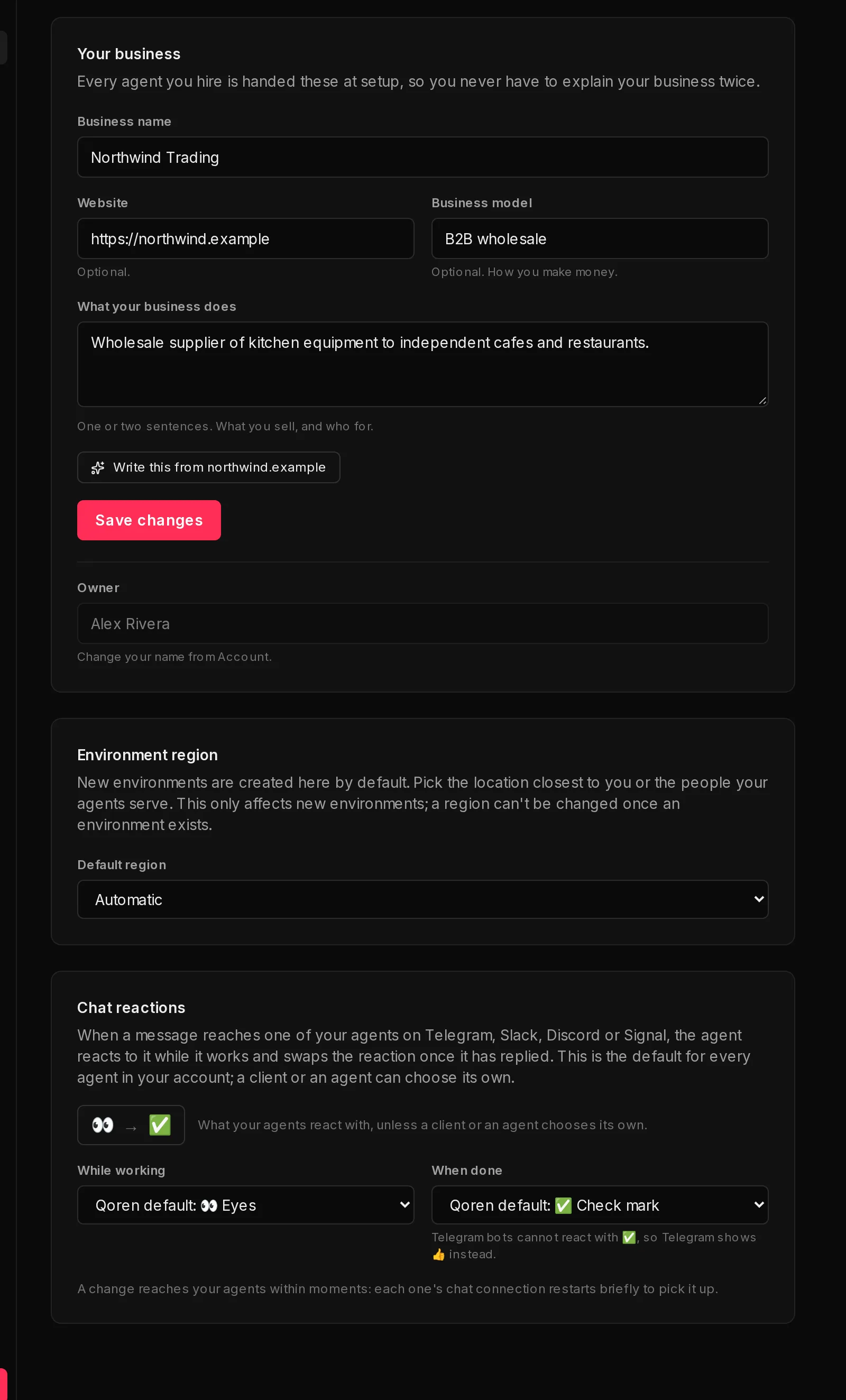
- Edit the Business name (1), Website (2), Business model (3) and What your business does (4).
- To have Qoren draft the description from your website, click Write this from followed by your website's address (5). It fills in the description and the business model; nothing is saved until you save.
- Click Save changes (6). The page confirms with Business details saved.
 1234567
Changes apply to agents you hire from now on. An agent you already have learned your details when it was set up; to tell it something new, just tell it in a chat, or edit its instructions (see Identity and instructions).
The Owner field under your business shows your own name. It is not edited here: change your name in Settings, under Profile.
Choose where new environments are created#
The Environment region card on the same page sets the Default region (7) where your new environments are created. Pick the location closest to you, or to the people your agents serve. Automatic lets Qoren choose.
This only affects environments you create from now on. An environment's region cannot be changed once it exists. See Create an environment.
Choose your agents' chat reactions#
When a message reaches one of your agents on Telegram, Slack, Discord or Signal, the agent reacts to it while it works (👀 by default) and swaps that for another emoji once it has replied (✅ by default). The Chat reactions card on the same page sets both for your whole account: pick an emoji in While working and in When done, and each choice saves straight away. A small preview such as 👀 → ✅ shows what your agents use.
A client or a single agent can choose its own, which then wins over the account's. See choose the chat reactions for the levels, and for what Telegram shows in place of emojis it does not allow.
Who can change these details#
Only the owner of the account can edit the business details, the default region and the chat reactions. Anyone else in your organization sees the same values, greyed out, with the note Only the account owner can change these.
Frequently asked questions#
Do I have to fill in my business details?
No. Every field except the business name is optional, and you can skip the welcome dialog entirely. The setup interview then asks you more about your business instead.
What does "Write this from" do with my website?
It reads your website and drafts the description and the business model from it. The draft lands in the form for you to check. Nothing is saved until you click Save changes.
I changed my details. Do my existing agents know?
Not automatically. The details are handed to an agent when it is set up. Tell an existing agent in a chat, or update its instructions.